
When I started my affiliate blog, I thought long, detailed posts were the secret to success.
I’d spend hours writing, carefully placing affiliate links in all the right spots, and then proudly hit publish.
But there was one big problem.
Readers would click in, scroll a little and then leave.
Google Analytics told the harsh truth, bounce rates were through the roof, and average time on page was embarrassingly low.
It was frustrating because I knew my content was good.
The issue wasn’t the information I shared. It was how people navigated it.
If you’ve ever had readers abandon a post halfway through, you know the feeling.
You want them to read more, stay longer, and click those affiliate links. But they won’t if they can’t quickly find what they’re looking for.
That’s when I discovered the Easy Table of Contents plugin for WordPress.
It was like handing my readers a map instead of making them wander aimlessly.
They could instantly see what the post covered, jump to the part they cared about, and stay engaged.
And once I paired Easy Table of Contents (ETOC) with my Blocksy theme, everything clicked:
- My time on page improved noticeably.
- My affiliate link clicks went up.
- My SEO rankings began to rise.
Today, I’m going to walk you through exactly how to set up Easy Table of Contents with Blocksy, including how to add a floating or sticky TOC even if you stick with the free version.
Table of Contents
Why Every Blogger Needs a Table of Contents in 2025
Readers Scan, Not Read
Online readers don’t behave like book readers.
They’re not looking to read every single word, they’re scanning for the information they want.
A Table of Contents (TOC) changes that experience entirely.
Instead of making your visitors scroll endlessly, you give them clickable headings that take them straight to what they need.
Here’s why it’s such a powerful tool in 2025:
1. The SEO Benefits You Can’t Ignore
Google loves structured content.
When you use a TOC, it creates jump links, those clickable shortcuts you sometimes see in search results under the main listing.
This can make your post stand out in Google and attract more clicks.
I’ve even seen my own post headings show up directly in search results, which instantly increased my CTR.
2. Better User Experience
A TOC makes your blog more reader-friendly.
Instead of losing visitors who can’t find what they want, you make it easy for them to skip to relevant sections.
They’re more likely to stay, read more, and trust you — and trust is key for affiliate conversions.
3. Why It’s Essential for Mobile Users
Over 70% of blog traffic in 2025 comes from mobile devices.
Scrolling through a 4,000-word guide on a phone can be exhausting.
A TOC turns that into a quick, simple tap to jump exactly where they want to be.
Think of it like GPS for your blog.
Without it, you’re just hoping visitors will find their way to the content that matters most to them.
What is the Easy Table of Contents Plugin?
Key Features for Bloggers
The Easy Table of Contents plugin is a free WordPress tool that automatically generates a clickable list of the headings in your post.
Instead of manually linking every section yourself, the plugin reads your H2, H3 (and optionally H4) headings and builds a clean, clickable navigation menu inside your post.
Why I recommend ETOC for Blocksy users:
- Works perfectly out of the box with Blocksy
- Easy to style, so it looks like it belongs in your design
- Ideal for long affiliate product reviews or in-depth tutorials
That’s why it is one of the best WordPress table of contents plugin.
Before I discovered ETOC, I tried several other plugins.
Some looked outdated, and others completely messed up my post formatting.
ETOC just worked and that’s exactly what a beginner blogger needs.
Easy Table of Contents with Blocksy themes. It’s a great combination. If you want to learn about Blocksy theme, read: Blocksy Theme Review 2025: The Best WordPress Theme for Affiliate Bloggers
My Early Mistakes with Easy Table of Contents (Learn From Me)
When I first installed ETOC, I assumed it would just work.
Spoiler: it didn’t.
Here’s where I went wrong:
Not Using Proper Heading Tags (H2, H3)
I had been styling my section titles manually with bold text instead of real H2 or H3 tags. ETOC couldn’t detect them, so my TOC showed up blank.
Leaving the Default Design Untouched
I left the plugin’s default colors and fonts, which clashed with my Blocksy theme. It looked like a random box dropped into my post, not part of my site design.
Forgetting to Test Mobile Layout
On mobile, the TOC looked cramped and pushed content too far down. I didn’t realize this until a reader messaged me about it.
Lesson learned: Spend five extra minutes setting it up properly, and you’ll save yourself headaches later.
Step-by-Step Setup of Easy Table of Contents in WordPress
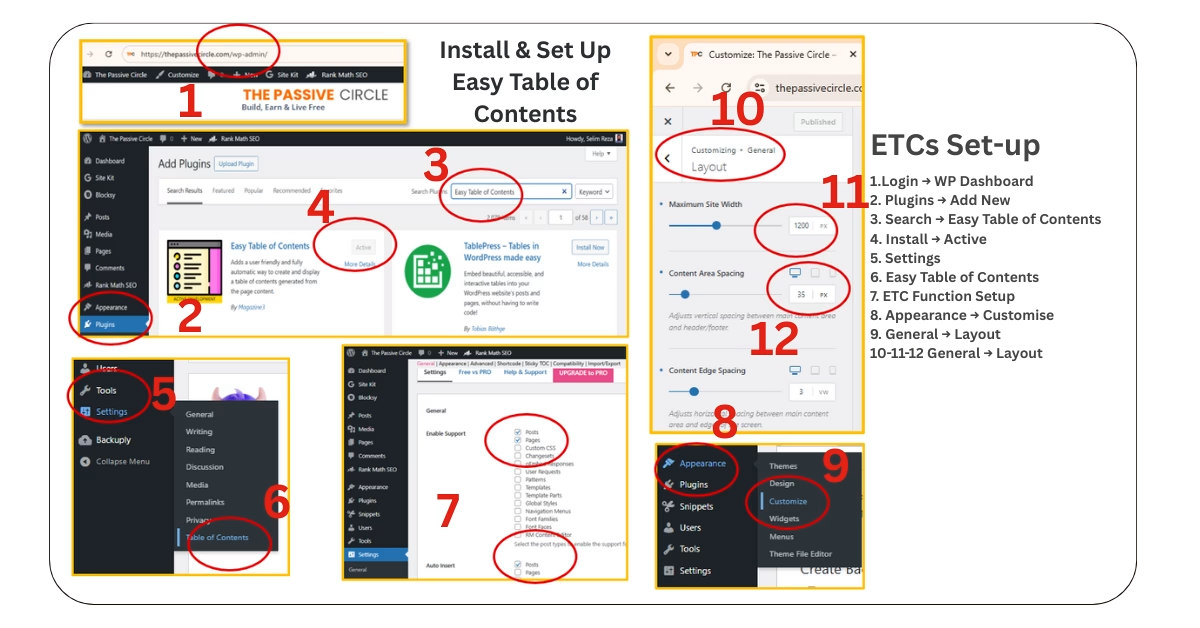
Step 1: Install the Plugin
- Go to your WordPress Dashboard → Plugins → Add New
- Search for “Easy Table of Contents”
- Click Install Now → Activate
Step 2: Open the Settings
- Go to Settings → Table of Contents in your dashboard.
Step 3: Enable It
- Tick the box for “Enable Support” on Posts (and Pages if you want a TOC there too).
Step 4: Choose Position
- My preference: After First Heading.
- It feels natural and gives a quick preview of what’s coming without pushing the intro down too far.
Step 5: Pick Headings
- Usually, H2 and H3 are enough.
- If your posts are extremely long, you can add H4 headings as well.
Step 6: Match Blocksy’s Design
- Go to the style settings and choose colors that match your Blocksy global palette.
- This makes the TOC look like part of your site, not an afterthought.
Step 7: Save & Preview
- Always check on both desktop and mobile before you publish.
- This helps catch spacing or font size issues.
Pro Tip: Keep the TOC design clean. Too many colors or effects can make it look spammy and distract from your content.
Customizing ETOC for Engagement
When I customized my TOC to match my brand colors, it instantly felt like part of the post.
It wasn’t just a navigation tool, it was part of the experience.
For The Passive Circle, I used:
- Links: Blocksy’s accent orange
- Background: Soft gray
On mobile, I kept the font size a little larger so people could tap headings easily.
Adding a Floating or Sticky TOC in Blocksy
Why a Floating TOC Works for Affiliate Blogs
For long affiliate list posts like my Best Tools for Bloggers, a floating TOC keeps navigation within reach at all times.
It also means your affiliate calls-to-action are always close to the reader’s eyes.
Pro Version: Built-In Sticky Option
With ETOC Pro, you get a built-in setting to make your TOC sticky as readers scroll.
You can position it on the left or right, and style it to match your theme.
| Plan | Price | Sites Covered |
|---|---|---|
| Personal | $49/year | 1 site |
| Multiple | $69/year | 3 sites |
| Webmaster | $79/year | 10 sites |
| Agency | $199/year | Unlimited sites |
| Lifetime | $499 (10-year updates) | Unlimited sites |
Free Version: My CSS Method
If you’re using the free version like I am, you can still add a floating TOC with a simple CSS tweak.
I’ve documented the exact process here:
How to Add a Floating TOC in Blocksy Theme (Free Method)
Easy Table of Contents – Free vs Pro
Free Plan Features
- Auto-generate TOC from headings
- Position options (top or after first heading)
- Collapsible TOC
- Basic styling controls
- Sidebar widget support
- Schema markup for SEO
Pro Plan Features
- Sticky/floating TOC toggle
- Elementor & Gutenberg blocks
- AMP compatibility
- Collapsible subheadings
- Multiple TOCs per page
- Advanced styling (fonts, borders, colors)
- Reading time display
| Feature | Free Version | Pro Version |
|---|---|---|
| Automatic Table of Contents | Yes | Yes |
| Multiple TOCs per page | No | Yes |
| Sticky / Floating TOC | No (CSS workaround needed) | Yes (built-in toggle) |
| Collapsible TOC | Yes | Yes |
| Smooth Scroll | Yes | Yes |
| Customizable Position | Limited (top/bottom of content) | Full control (left/right, float, sticky) |
| Multiple Columns Layout | No | Yes |
| Advanced Styling Options | Basic | Fonts, colors, borders, backgrounds |
| Widget & Shortcode Support | Limited | Full widget + shortcode flexibility |
| Priority Support | No | Yes |
| Lifetime Updates | Yes (free updates) | Yes (with active license) |
Beginner Advice: Start with free. When your blog grows and you need Pro’s advanced features, you’ll know — and it’ll be worth it.
ETOC’s Hidden SEO Boost
Most bloggers think a Table of Contents is only about helping readers jump around a post.
But the truth is, it can also give you an SEO advantage — and Google is quietly rewarding sites that use them well.
Here’s why:
When you insert a TOC with the Easy Table of Contents plugin, every heading in your post becomes a clickable jump link.
Google can crawl these links and sometimes display them directly in your search result listing.
These are often called sitelinks or jump-to links. You’ve probably seen them when searching for a tutorial — they appear as extra clickable blue links under the main result.
Why this matters for you:
- More Space in Search Results – Your listing takes up more visual space, pushing competitors lower.
- Better Click-Through Rates (CTR) – People are more likely to click when they see direct links to the exact section they want.
- Improved User Signals – When users quickly find what they’re looking for, they stay longer, which can indirectly boost rankings.
I’ve had several of my posts (especially long guides) where the TOC headings appeared right in Google’s results.
Those posts consistently got more clicks and lower bounce rates because readers could jump straight to what they needed.
Pro tip: To increase the chances of your TOC showing up in search results, make sure your headings use descriptive keywords, not vague ones. For example:
“Step 1” → “Step 1: Install Easy Table of Contents Plugin”
Troubleshooting Common Issues
Even though Easy Table of Contents is beginner-friendly, you might run into a few hiccups.
Here’s how to fix the most common problems without tearing your hair out.
1. TOC Not Showing at All
- Cause: Most often, it’s because the plugin can’t detect any real heading tags in your content. If you’ve just made text bold or increased font size manually, it won’t count.
- Fix: Make sure you use H2, H3, or H4 tags for section titles. In the WordPress editor, select the text → choose Heading from the block type menu.
2. Design Looks Out of Place
- Cause: The default style might not match your Blocksy theme colors or font.
- Fix: Go to Settings → Table of Contents → Appearance and set your background, link, and hover colors to match your Blocksy global palette. This makes the TOC blend naturally with your brand.
3. Mobile View is Messy
- Cause: A large TOC can push your content too far down on mobile screens.
- Fix: Enable Initially Hide or Show When Collapsed in the settings. This way, mobile users can tap to open the TOC only when they want it.
4. Sticky/Floating TOC Not Working
- Cause: The Free version doesn’t have a direct sticky toggle.
- Fix: Either upgrade to Pro or add the CSS method I’ve shared in my floating TOC tutorial.
5. TOC Showing Unwanted Headings
- Cause: The plugin includes all headings by default.
- Fix: In settings, uncheck heading levels you don’t want, like H4 or H5, to keep the TOC short and clean.
My rule: If it looks messy, test on both desktop and mobile before publishing. A clean, functional TOC makes readers stay longer, and Google notices you more.
FAQ – Easy Table of Contents Plugin for WordPress & Blocksy
What is the Easy Table of Contents plugin?
The Easy Table of Contents (ETOC) plugin is a free WordPress tool that automatically creates a clickable list of your headings (H2, H3, H4, etc.) inside your blog post or page. It helps readers navigate your content quickly and improves SEO by adding structured jump links that Google can index.
Is the Easy Table of Contents plugin free?
Yes, there’s a free version with enough features for most beginner bloggers. It lets you auto-generate a TOC, style it to match your theme, and choose where it appears in your posts. There’s also a Pro version with extra features like sticky/floating TOCs, multiple TOCs per page, and advanced styling.
How does a Table of Contents help with SEO?
A TOC improves SEO in two main ways:
Structured Content – Google can easily understand your headings and sections.
Jump Links – These clickable links may appear in search results, making your listing more attractive and clickable.
Does Easy Table of Contents slow down WordPress?
No. Easy Table of Contents is lightweight and coded efficiently. If you notice slowdowns, it’s usually caused by other heavy plugins, large images, or your hosting environment — not ETOC.
Can I use Easy Table of Contents with the Blocksy theme?
Absolutely. Easy Table of Contents works perfectly with Blocksy. In fact, its design customization options make it easy to match Blocksy’s modern look without extra coding.
How do I make the TOC sticky or floating?
If you’re using Easy Table of Contents Pro, you can enable sticky positioning directly in the settings.
If you’re on the free version, you can still make it float using custom CSS — I’ve shared my step-by-step free method here: Floating TOC Tutorial.
Can I add a TOC without a plugin in WordPress?
Yes, but it’s manual. You’d have to create anchor links for each section and link to them in a list. This works, but it is time-consuming. Easy Table of Contents does it automatically.
What’s the difference between the Free and Pro versions of Easy Table of Contents?
The free version covers basics: automatic Easy Table of Contents creation, collapsible menus, and basic styling.
The Pro version adds:
Sticky/floating Table of Contents
Multiple TOCs per page
AMP support
Advanced design controls
Elementor & Gutenberg blocks
Reading time display
Does Easy Table of Contents work with Elementor or other page builders?
Yes, but the Pro version integrates more smoothly with Elementor. The free version can still work if your headings are formatted properly.
How do I change the Easy Table of Contents style to match Blocksy?
In the plugin’s settings, go to the Appearance tab. Choose your background color, link color, and font size to match Blocksy’s global styles. This keeps your design consistent.
Can I have multiple TOCs on one page?
Yes, but only with the Pro version. This is useful for long resource pages with multiple main sections.
Does a TOC work on mobile devices?
Yes, but you should test it. On mobile, a collapsible TOC is often better because it saves space and doesn’t push content too far down.
Can I hide the TOC in specific posts?
Yes. In each post’s settings, there’s an option to disable the TOC. This is useful if a post is short and doesn’t need one.
Does Easy Table of Contents support schema markup?
Yes, the plugin automatically adds schema markup, which can help search engines better understand your content structure.
Is sticky TOC worth the upgrade?
Suppose you publish long-form posts regularly. A sticky TOC keeps navigation visible, reduces scrolling frustration, and can increase affiliate link clicks because readers stay engaged longer.
Can I customize which headings appear in the TOC?
Yes. In settings, you can choose which heading levels (H2, H3, H4, etc.) to include. I usually go with H2 and H3 for simplicity.
Will the TOC work if I use custom heading styles instead of H2/H3?
No. The plugin detects actual HTML heading tags. If you just make text bold or large without using heading tags, it won’t show up.
Can I collapse the TOC by default?
Yes. This is a good option for mobile users. The TOC can be collapsed so it only opens when clicked, saving space at the top of your post.
Is there a lifetime license for ETOC Pro?
Yes. As of mid-2025, you can get a lifetime license for $499, which includes 10 years of updates and unlimited site usage.
Do I really need a Table of Contents on every post?
Not necessarily. Short posts (under 800–1,000 words) may not need one. But for long affiliate guides, tutorials, and listicles, a TOC can improve engagement and SEO.