This post may contain affiliate links. If you purchase through these links, I may earn a small commission at no extra cost to you. Read our full Affiliate Disclosure
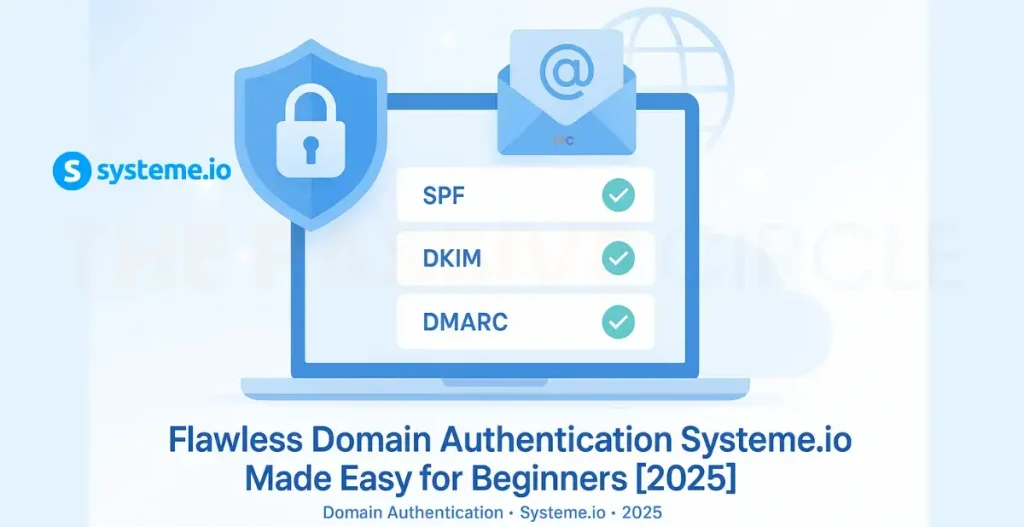
Domain Authentication Systeme.io
Sending emails with Systeme.io is a smart way to grow your business. However, before you begin, there is one crucial step you cannot skip. That step is domain authentication. In this article, you will learn how to authenticate your domain name for email sending.
Without it, your emails may not reach your audience. They could end up in the spam folder. Or worse, they may not get delivered at all.
Email services like Gmail and Outlook have become very strict today. They only trust emails that come from verified domains. If your domain is not verified, your emails look unsafe. This can hurt your open rates and your business.
The good news: Systeme.io makes domain authentication easy. No tech skills or outside help required. You can do it in a few quick steps.
In this guide, you will learn how to set up the domain authentication Systeme.io requires. I will walk you through everything. Step by step. This guide is made for beginners, so anyone can follow along.
Let’s get your emails into inboxes where they belong.
Table of Contents
What Is Domain Authentication in Systeme.io?
Domain authentication proves you own your sending domain. Mine is thepassivecircle.com, as you know.
Email services like Gmail and Yahoo want to know that your emails are real. If they cannot trust your domain, your messages may go to spam. Or they may get blocked.
With domain authentication in Systeme.io, you add SPF, DKIM, and sometimes DMARC records to your domain settings. These tell email platforms that your emails are safe.
These records are like digital ID tags. They say, “Yes, this domain is real and safe.”
Without domain authentication, your emails may look fake. People may not open them. Your email list may stop working well.
But once you set it up, your emails are more trusted. They go to the inbox. Your open rates improve. And your chances of success go up.
Using domain authentication Systeme.io gives your emails the trust they need to reach your audience.
Why You Need Domain Authentication with Systeme.io
If you send emails with Systeme.io, you need to set up domain authentication. It is not just a good idea. It is a must.
Here is why it matters:
- Your emails are more likely to land in the inbox.
- More people will open and click your emails.
- Gmail, Yahoo, and others will trust your domain.
- You follow the latest email rules
Email platforms now block messages that look unsafe. If your domain is not verified, your emails can get marked as spam. Guess what! I’ve faced it at the beginning of my Systeme.io journey. It didn’t feel good!
This is very important if you do email marketing, affiliate marketing, or run an online coaching business. You need your emails to reach your audience.
Setting up domain authentication Systeme.io helps you avoid big problems. Do it now so you don’t lose leads or sales later, like I did.
Step-by-Step: How to Set Up Domain Authentication in Systeme.io
Setting up domain authentication may sound hard, but it’s not. Just follow these simple steps. For me, it was like tons of work to do! Search the website, watch tutorials, and research the best approach to do it. I’m hoping to get an easy solution!
I did it and share the best approach so that you don’t have to repeat the whole struggle like me. Just follow the process I stated below:
Step 1: Log in to your Systeme.io account

Go to your dashboard. Click on Settings. Then go to Email Settings and choose Custom Domain.
Step 2: Add your domain name

Type in the domain you want to use. This is the name that shows up after the @ in your email.
If you’re using the same domain for both WordPress and Systeme.io (for email or funnel setup), and you don’t configure it carefully…Conflict happens. Systeme.io overrides your domain, and visitors land on a broken page.
And trust me, if you’re just blindly following tutorials from YouTube (like I did), You’ll never know why it’s happening until someone clicks your site and gets confused.
Use a subdomain for Systeme.io instead.
Here’s what happened to me and how I fixed it by adding a subdomain for Systeme.io.
Step 3: Copy the DNS records
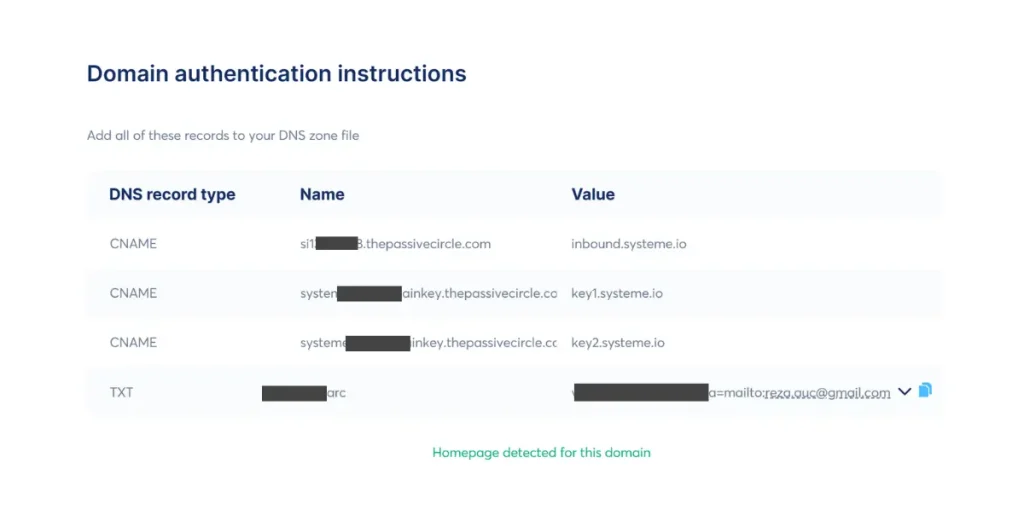
Systeme.io will show you special records. These are SPF and DKIM. Copy each one carefully.
Step 4: Open your domain provider
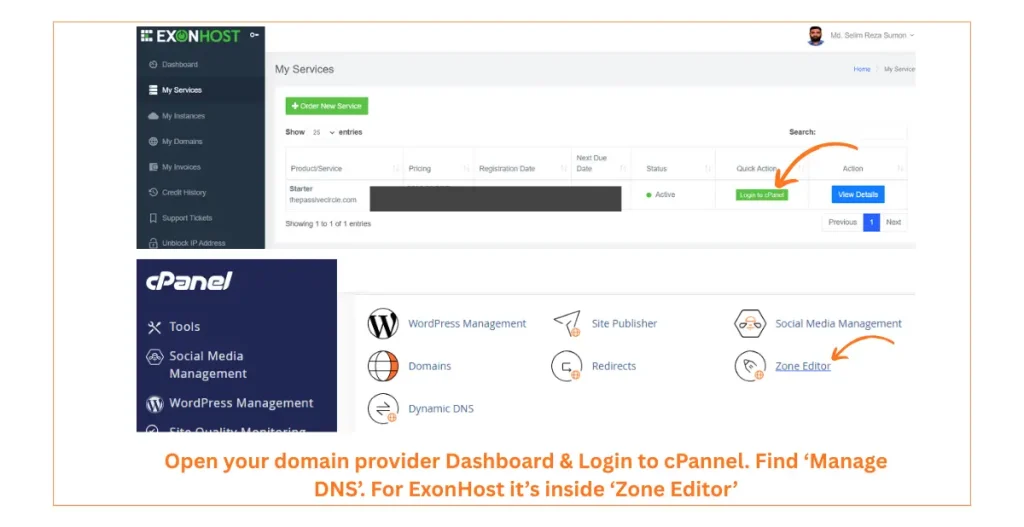
Log in to where you bought your domain, like GoDaddy or Namecheap. Go to the DNS settings. Paste each record as a new TXT entry. I’m currently using ExonHost. So the Screenshot based on ExonHost. But the steps are same for Namecheap, GoDaddy, Hostinger etc.
Step 5: Save your changes
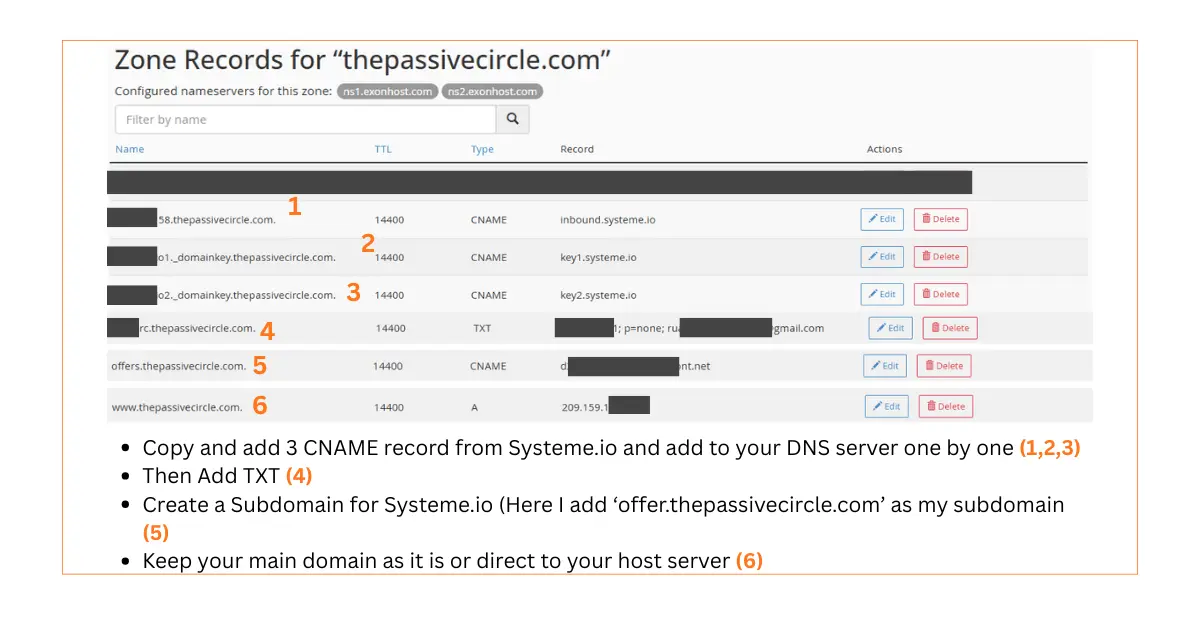
Click save. Now you need to wait. It may take a few minutes or up to 48 hours for the records to work.
Use DNS Checker to confirm if your DNS changes are active worldwide. It helps see if your records are updated in all regions.

Step 6: Go back to Systeme.io and click Verify
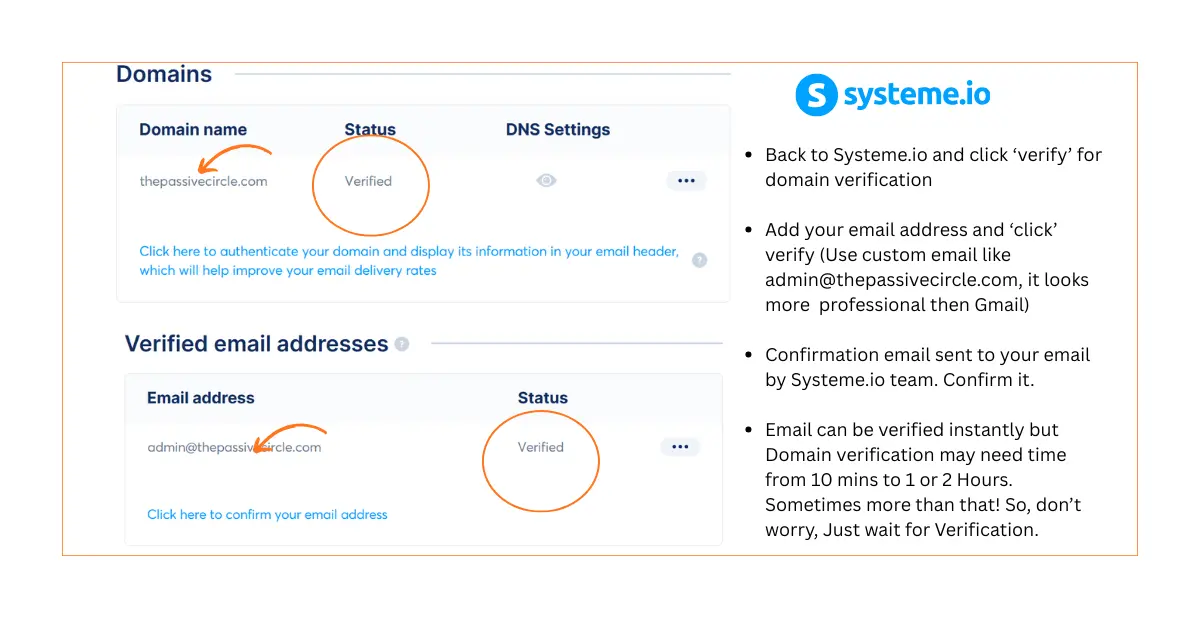
Once the records are ready, click the Verify button in Systeme.io. If everything is correct, your domain will be verified.
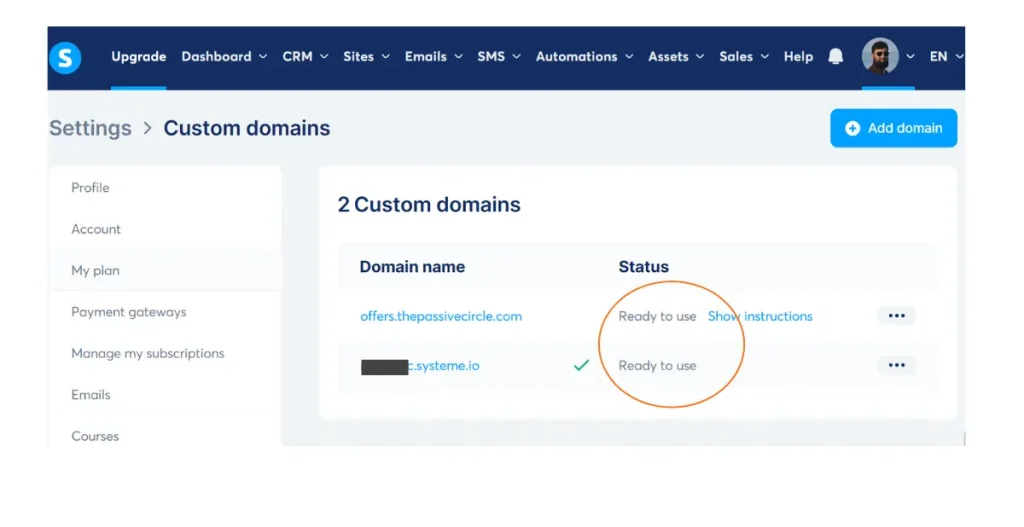
That’s it! You have now finished setting up the domain authentication Systeme.io needs for better email results.
Now your emails are safer, trusted, and more likely to reach the inbox.
Common Issues and How to Fix Them
Sometimes things don’t work right away. Don’t worry. Most problems are easy to fix.
Here are common issues and how to solve them:
Records not verifying?
Check for spelling mistakes. Make sure there are no extra spaces or missing parts. Copy and paste the records exactly as shown.
Are emails still going to spam?
Try using an email warm-up tool. Tools like Mailwarm or Instantly help build trust with email providers.
Using Gmail or Outlook addresses?
Make sure your email signature includes your name, domain, and business details. This looks more professional and builds trust.
Nothing is happening?
Be patient. Sometimes DNS changes take time. It can take up to 48 hours to go live.
Most issues happen because of small mistakes. Go through the steps slowly. Double-check everything inside your domain settings. If needed, ask your domain provider for help.
Once everything is correct, your domain authentication Systeme.io setup should work smoothly.
Best Practices After Domain Authentication
Great job! Your domain is now verified. To keep things working well, follow these simple tips.
Send emails only from your verified domain.
Always use the domain you set up. This keeps your sender reputation strong.
Avoid spammy subject lines.
Do not use words like “Buy now,” “Free,” or “Click here.” Keep it real and helpful.
Clean your email list often.
Remove fake or inactive emails. This improves open rates and keeps your list healthy.
Use a professional email address.
Use something like admin@thepassivecircle.com or hello@yourdomain.com. It looks more trustworthy.
Check your email stats every week.
Watch your open rates, clicks, and bounces. If something looks off, check your setup.
These habits will protect your sender score. They also help your domain authentication Systeme.io setup stay solid and trusted over time.
Final Thoughts: Make Domain Authentication Easy
Setting up domain authentication may sound hard. But with Systeme.io, it’s quick and beginner-friendly.
Once your domain is verified, your emails work better. More people will see them. More people will open them. You will build trust with every message you send.
You also stay out of spam folders. This means more leads, more sales, and better results.
Don’t wait. Set up your domain authentication Systeme.io today. It only takes a few steps, and it makes a big difference.

FAQs on Domain Authentication Systeme.io
Here are the most common questions beginners ask when setting up domain authentication in Systeme.io.
Q: What if I don’t have a domain?
A: You’ll need to buy one before you can set up email authentication. You can get a domain from sites like Namecheap, GoDaddy, or Google Domains. Choose a short, clear domain name that fits your brand. After you buy it, connect it to Systeme.io by following the steps in your dashboard.
Q: Can I use Gmail instead?
A: No. Free Gmail addresses like yourname@gmail.com do not support proper domain authentication. These addresses are not trusted for email marketing. Always use a custom domain like yourname@yourdomain.com. This helps your emails look professional and trusted.
Q: How long does verification take?
A: In most cases, verification takes a few minutes. But sometimes it can take up to 48 hours. This depends on your domain provider. Make sure you entered the DNS records correctly. If you did, just wait a bit and check back later.
Q: Do I need technical help?
A: No, you don’t. Systeme.io gives you all the steps. Just copy the DNS records it gives you and paste them into your domain settings. It’s easy to follow. If you get stuck, your domain provider’s support team can also help.
How to Use a Domain Inside Systeme.io
You can connect your domain in three simple steps:
Step 1: Add your domain to Systeme.io
Go to Settings > Custom Domains and click Add domain. Enter your domain name.
Step 2: Add CNAME records
Login to the account where your domain is hosted (like GoDaddy or Namecheap). Add two CNAME records shown in Systeme.io. These help connect your domain to the platform.
Step 3: Set up redirection (optional)
You can redirect your domain to a specific funnel, page, or homepage. This step helps your visitors go to the right place.
Once done, your domain is ready to use inside Systeme.io for landing pages and emails.
Why Are My Emails Not Being Sent?
If your emails are not sending, check the following:
Is your domain verified?
Did you set up SPF and DKIM correctly?
Is your email list valid with no fake or wrong addresses?
Are you using a proper sender email like info@yourdomain.com?
Have you reached your daily sending limit in Systeme.io?
Fixing these can solve most sending issues.
Why Do My Emails Arrive in the Promotions Tab of Gmail?
Gmail sorts emails into folders like Primary, Promotions, and Spam.
If your email contains:
Lots of images
Promotional phrases like “Buy now”
Too many links or bold fonts
A long sales message
…it will likely land in the Promotions tab.
To fix this:
Write short, plain-text style emails
Keep subject lines simple
Avoid spammy phrases
Ask your subscribers to drag your email to the Primary tab
This trains Gmail to treat your emails as personal and important.
Need more help? Systeme.io’s support team and tutorials are always there to guide you.
With the right setup, your domain authentication Systeme.io process will run smoothly and help your emails reach more people.
How to Improve the Deliverability of My Emails (Advanced Tips)
Want even better inbox rates? Follow these advanced tips:
Use double opt-in to collect clean leads
Warm up your domain with tools like Instantly or Mailwarm
Send emails slowly at first, then increase volume
Avoid too many images or links in your message
Don’t use words like “free,” “urgent,” or “buy now” in subject lines
Always use your verified custom domain
Test emails with tools like MailTester or GlockApps
These steps help build trust and improve your sender reputation.
Q: How to Use a Domain Inside Systeme.io?
You can connect your custom domain by going to Settings → Custom Domains → Add Domain.
Enter your domain (like yourname.com) and follow the DNS setup guide Systeme.io gives you.
After saving, wait a few hours for verification. Once done, your domain will work for your funnels and emails.
Q: Why Are My Emails Not Being Sent?
This often happens if your domain is not verified yet.
Go to Emails → Senders and check if your sender email shows a green “verified” mark.
If not, finish the domain authentication steps.
Also, make sure your plan includes email sending and you have not hit your daily limit.
Q: Why Do My Emails Arrive in the Promotions Tab of Gmail?
Gmail sorts emails based on content. If your email looks like a sales ad or has too many links, it goes to “Promotions.”
To fix this, write short, friendly emails, avoid too many emojis or images, and use a real sender name instead of a brand name.
Ask your readers to move your email to the main inbox once.
Q: How to Improve the Deliverability of My Emails (Advanced Tips)?
Set up SPF, DKIM, and DMARC records in your domain DNS.
Use a custom domain instead of a free one like Gmail.
Warm up your email slowly—send to 10-20 people first, then increase daily.
Keep your email list clean; remove inactive contacts.
Use a friendly tone and avoid spammy keywords.
Q: What is the .io Domain For?
“.io” is the domain extension for the British Indian Ocean Territory, but it’s popular in tech and startup sites.
It’s short, trendy, and easy to remember. That’s why Systeme.io uses it for its platform.
Q: Is .io a Valid Email Address?
Yes, emails with .io are fully valid.
For example, hello@systeme.io works just like any other domain email such as .com or .net.
Q: What is Domain Authentication?
Domain authentication proves that Systeme.io has permission to send emails using your domain.
It adds special DNS records (SPF and DKIM) that email services like Gmail trust.
This stops your emails from being marked as spam or fake.
Q: What is Domain Authentication Systeme.io Email?
It’s the process of linking your domain to Systeme.io for email sending.
Go to Emails → Senders → Add Sender Email, verify your domain, and add the DNS records Systeme.io gives you.
Once verified, all your marketing emails will show as trusted.
Q: Is Domain Authentication Systeme.io free?
You can authenticate your domain for free on Systeme.io.
The feature is included in all plans, even the free one.
You only pay for your domain name from a registrar like GoDaddy or Namecheap.
Q: What should I do when Domain Authentication Systeme.io Not Working?
If it’s not working, double-check your DNS records.
Make sure you copied SPF and DKIM exactly as Systeme.io shows.
DNS changes can take 24-48 hours to update.
Clear your browser cache and retry after that.
Q: What is Systeme.io Domain Pending Validation message?
This message means your DNS records haven’t updated yet.
Wait a few hours, then click “Check DNS” again in Systeme.io.
If it still shows pending, contact your domain registrar for help verifying the records.
Q: How to Systeme.io Custom Domain connect?
A custom domain lets you use your own website name instead of a Systeme.io subdomain.
You can connect it under Settings → Custom Domains.
It helps with branding and improves email trust.
Q: What is the solution of no Homepage Detected Systeme.io?
This error shows when your funnel or site doesn’t have a homepage set.
Go to your funnel, click Settings, and choose which page should be the “Homepage.”
Save and refresh to fix it.
Q: Does Systeme.io IP Address fixed?
Systeme.io runs on cloud servers, so there isn’t a single fixed IP address to use.
If your DNS setup asks for an IP, Systeme.io usually provides one in your domain setup guide or email.
Q: How to Connect GoDaddy Domain to Systeme.io?
Log in to your GoDaddy account.
Open your domain’s DNS Settings.
Add the CNAME and TXT records Systeme.io gives you.
Save and return to Systeme.io to verify the domain.
Wait a few hours for DNS to update, and your GoDaddy domain will connect successfully.
Quick Checklist Recap
Here’s a fast recap to keep you on track:
- Log in to Systeme.io
- Add your custom domain
- Copy the DNS records (SPF and DKIM)
- Open your domain provider (like GoDaddy or Namecheap)
- Paste the records into the DNS settings
- Save changes and wait for them to update
- Click Verify in Systeme.io
- Start sending trusted, inbox-ready emails
Need help with DNS setup?
Go to your domain provider’s help center and search for “how to add TXT records.”
Want better email results?
Check out Systeme.io’s email marketing tutorials for more tips and guides.
Ready to Improve Your Email Deliverability?
Don’t wait for your emails to land in spam. Take control now.
Set up your domain authentication in Systeme.io today
Boost trust, improve open rates, and protect your sender reputation
It only takes a few minutes and it makes a big difference.
Log in to your Systeme.io account and get started now!
Need help? Follow the steps above or reach out to your domain provider’s support team. You’ve got this!