This post may contain affiliate links. If you purchase through these links, I may earn a small commission at no extra cost to you. Read our full Affiliate Disclosure

Ever tried to back up your WordPress site with Backuply only to see that annoying message — “Ran out of PHP memory”? Don’t worry, you’re not alone. This happens more often than you think, especially on shared hosting plans.
What Does “Ran Out of PHP Memory” Mean?
Have you ever seen a message while taking backup of your website: ”Allowed memory size of 134217728 bytes exhausted (tried to allocate 77824 bytes) you can solve this issue by increasing PHP memory limit”
The good news? You don’t need to be a tech wizard to fix it. In this guide, I’ll walk you through exactly why this error happens and how to increase your PHP memory limit step-by-step so Backuply runs smoothly again.
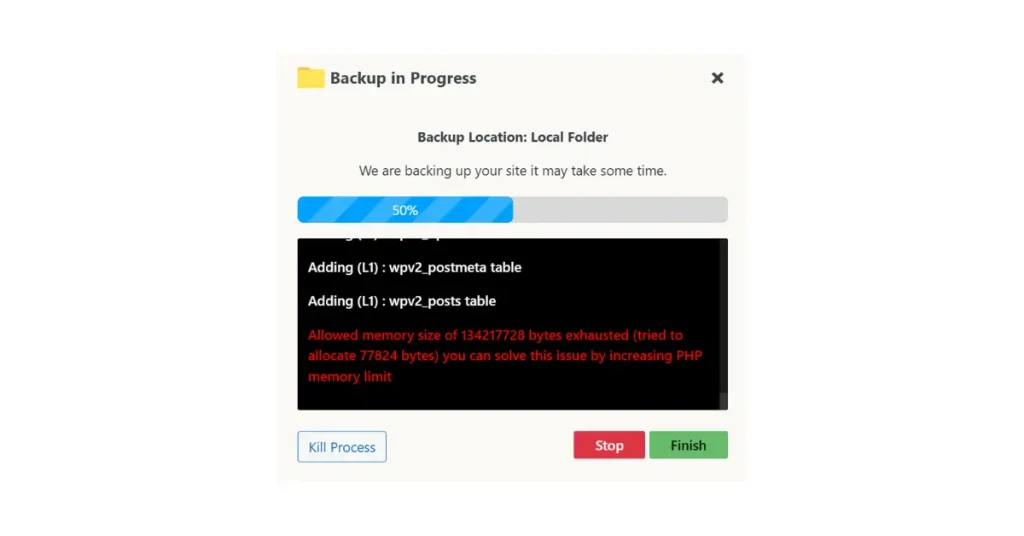
Yes — that error means your hosting server ran out of PHP memory while Backuply was running (usually during backup creation or file compression). It’s common when using backup plugins on small hosting plans.
Table of Contents
Here’s how to fix it:
1. Increase PHP Memory Limit
You can do this in several ways — just one of them is enough.
Option 1: Edit wp-config.php
Add this line above the line that says /* That's all, stop editing! */:
define('WP_MEMORY_LIMIT', '512M');
If you’re on shared hosting, sometimes 256M is the max allowed — start with:
define('WP_MEMORY_LIMIT', '256M');
Option 2: Use .htaccess (for Apache hosting)
Add this line at the bottom of your .htaccess file:
php_value memory_limit 512M
(If you get a 500 error after saving, remove this — your host might not allow it.)
Option 3: Edit php.ini (if you have access)
If your hosting gives you a php.ini or user.ini file, add:
memory_limit = 512M
Option 4: From cPanel
- Go to Select PHP Version or MultiPHP INI Editor.
- Find memory_limit.
- Change it to 512M and save.
2. Retry Backuply
After increasing memory, go back to Backuply and rerun the backup.
If it still fails:
- Temporarily disable other heavy plugins (like security scanners or optimizers).
- Exclude large folders (e.g.,
/wp-content/uploads) to test if that’s the issue.
Quick Tip
If you frequently get this memory error, it’s a sign your hosting plan is too limited. Consider switching to a better plan or host with higher PHP limits (like 512M–1G).
Here’s what I did Step-by-Step to Fix the issues:
Step-by-Step: Increase PHP Memory Limit in cPanel
1. Go to MultiPHP INI Editor

2. Choose the correct location
At the top, there’s a dropdown menu that says:
-- Select a location --
Click that dropdown and select your domain name (for example, thepassivecircle.com) or your public_html folder.

This tells cPanel which site’s PHP settings you want to edit.
3. Find “memory_limit”
After selecting your domain, scroll down until you see:
memory_limit
It might currently show something like 128M or 256M.
4. Increase the value
Change it to:
512M
or at least:
256M
(If your host allows, 512M is safer for backups.)
5. Save Changes
Scroll down and click Apply or Save.

6. Test Backuply Again
Now go back to your WordPress Dashboard → Backuply → try to run the backup again.
It should complete without showing the “Allowed memory size exhausted” error.
If it still fails:
- Try setting memory to 768M (if your host allows).
- Temporarily deactivate other heavy plugins (like Elementor, RankMath, or cache plugins).
- Exclude large folders from Backuply (especially
/wp-content/uploads).
Learn How to Fix Missing Keywords in Rank Math: A Complete Step-by-Step Guide
I share everything I learn about affiliate marketing as I go. Here are my most recent posts you might find helpful.
- How to Do Keyword Research for Free (Find Easy Keywords for Beginners)

- Link Juice in SEO: A Simple & Easy Guide for Beginners

- How Bloggers Make Money With Affiliate Marketing Funnels (Simple Guide)

- Systeme.io Pricing Explained for Beginners (Free vs Paid Plans)

- Best Email Marketing Tools for Beginners With No Website