This post may contain affiliate links. If you purchase through these links, I may earn a small commission at no extra cost to you. Read our full Affiliate Disclosure

Many beginners upload images without thinking about size or quality. Large images slow down the blog. A slow site hurts your ranking and your user experience. The good news is that image SEO optimization is easy to learn. You only need a few simple steps to make your images light, clear, and fast.
This guide shows you how to optimize images for WordPress in the simplest way possible.
Table of Contents
What Is Image SEO Optimization
Image optimization means reducing the file size of your images without losing quality. It helps your site load faster. Google loves fast sites and rewards them with better ranking.
Optimized images make your page smooth. Your readers stay longer. Your blog feels more professional. This is a small habit that yields long-term results.
Why Image Optimization in SEO Matters
Google uses page speed as a ranking factor. Heavy images slow your page. Slow pages push you down in search results.
Fast pages help your visitors stay longer and read more. This sends strong signals to Google that your content is helpful.
Image optimization also improves your Core Web Vitals. This is a part of Google’s performance check. When your images load fast, you get a better score.
How to Check if Your Images Are Too Large
There are simple signs that your images are too heavy. Your page loads slowly. Your site feels stuck on mobile. Your PageSpeed score is low. You can also check the image file size. Anything over 1 megabyte is too large for a blog post.
Beginners often upload original images from their phones or laptops. These can range from 5 to 15 megabytes. This is not good for SEO. You should always resize and compress before uploading.
Best Image Sizes for Blogs
A simple size works for most blog images. Use a width of 1,000 to 1,200 pixels. This is big enough for a clear display. Most of the photos I use across all my blogs are 1200×628 pixels. It is also small enough for fast loading.
Avoid uploading full-size images from your camera. These are much bigger than needed.
How to Optimize Images Before Uploading
You can reduce the image’s size before uploading it. There are many simple tools for this. These tools let you compress or resize files with a single click.
- TinyPNG
- TinyJPG
- Squoosh
- Canva export settings
These tools lower the file size while keeping the image clear. Most beginners use TinyPNG because it is easy and free.
WordPress Plugin for Optimizing Images
WordPress also has plugins that optimize images for you. These plugins compress and resize photos, improving loading speed. You only install once, and they run automatically.
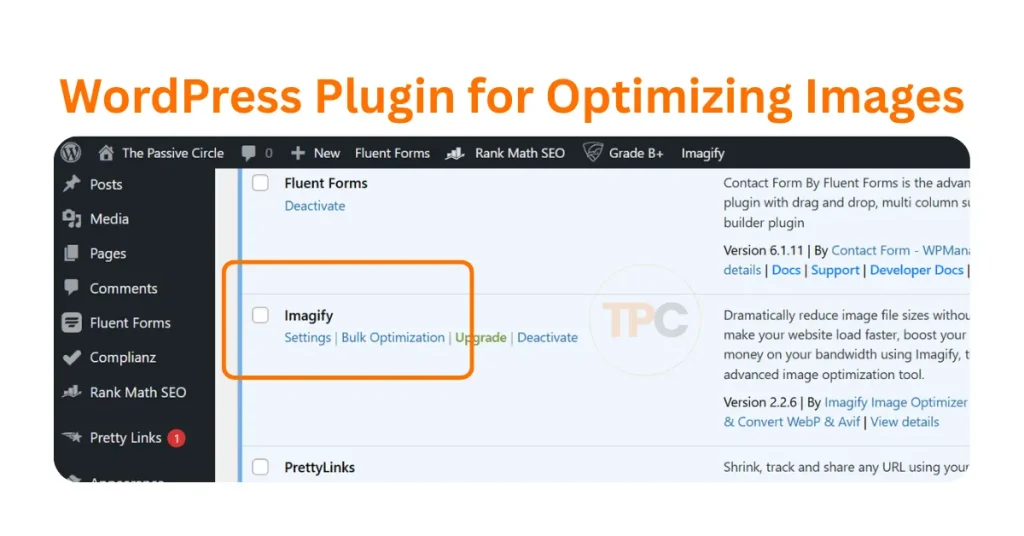
Here are beginner-friendly tools.
- Imagify
- Smush
- ShortPixel
- Optimole
I use Imagify because it is simple, fast, and runs in the background without extra work.
Choose one plugin. Do not install many. A straightforward tool is enough.
How Lazy Loading Helps Speed
Lazy loading means your images load only when the user scrolls to them. This saves bandwidth and makes your page appear much faster.
Most new versions of WordPress include lazy loading by default. Many image optimization plugins also include this feature. This adds extra speed without extra effort from you.
What About File Formats
Use simple formats that load fast. WebP is the best choice for most blogs because it delivers high-quality images at a small size. JPG is also acceptable for regular photos. PNG works for graphics and screenshots.
If you upload WebP or JPG files, your site will load faster than with large PNG files. Many optimization plugins can automatically convert your images.
Real Life Examples for Affiliate Bloggers
Since your niche is affiliate marketing for beginners, you often use:
- Screenshots of dashboards
- Step-by-step tutorials
- Tool reviews
- Charts and graphics
- Blog layouts
These should continually be optimized. If not, your tutorial pages will load slowly. This hurts your ranking and your reader experience.
9 Easy Image SEO Optimization Steps
Image SEO feels confusing at first, but it becomes simple when you follow a clear system. These steps are easy for beginners and work on every WordPress site. They help your blog load faster and give Google a clear picture of your content.
Here are the steps you can follow.
Step 1. Choose the right image size
Use a width of 1,000 to 1,200 pixels. This size keeps your images sharp without slowing down your page.
Step 2. Compress before uploading
Use tools like TinyPNG or Squoosh to reduce file size. This makes your images light and fast.
Step 3. Use the best file format
WebP gives the best speed. JPG works well for photos. PNG is ideal for graphics and screenshots.
Step 4. Optimize inside WordPress
Install a simple plugin that automatically compresses your images.
I use Imagify because it is simple, fast, and runs in the background without extra work.
Step 5. Add clear alt text
Write one short line that explains what the image shows. Keep it natural and helpful.
Step 6. Name your files clearly
Use simple names like keyword research example.jpg. Avoid random names like IMG001.jpg.
Step 7. Use lazy loading
Lazy loading shows images only when the reader scrolls to them. This makes your page load faster.
Step 8. Remove images you do not need
Extra images slow down your site. Keep only images that help your reader understand the post.
Step 9. Check your PageSpeed score
Use PageSpeed Insights or GTmetrix to test your page. Fix any images that are too large before you publish.
These steps take only a few seconds, but they make a big difference in your speed and SEO.
Image SEO is not a skill. It is a simple habit. Follow these steps, and your blog will always stay fast.
Simple Workflow for Image Optimization
Here is a beginner-friendly workflow to follow.
- Create your image
- Resize it to one thousand or twelve hundred pixels
- Compress it with TinyPNG or your chosen plugin
- Upload it to WordPress
- Add alt text
- Publish your post
This takes only a few seconds. The benefit is huge for SEO.
Good Image Optimization vs Bad Optimization
Bad optimization
- Large image files
- No resizing
- Heavy PNG screenshots
- Uploading original camera images
Good optimization
- Light images
- Proper resizing
- Compressed files
- Fast loading pages
Good optimization helps Google trust your page. Bad optimization slows everything down.
Quick Checklist Before You Publish
Use this checklist on every post.
- Is the image resized?
- Is the image compressed?
- Is the image under one megabyte?
- Is lazy loading active?
- Is the file format correct?
- Is the page loading fast?
If you can say yes, your image is well optimized.
FAQs for Image SEO Optimization
1. What is image SEO optimization?
Image SEO optimization means improving your images so they load fast and help Google understand your page. It includes resizing, compressing, using the best file format, adding alt text, and choosing clear file names. When your images are optimized, your blog loads faster and ranks more easily.
2. Why is image optimization important for WordPress?
WordPress sites often slow down because of heavy images. Large files increase loading time and harm your SEO. When you optimize your photos, your blog opens quickly on both mobile and desktop. This gives users a better experience and sends positive signals to Google.
3. What is the best image size for blogs?
A width of 1,000 to 1,200 pixels works well for most blogs. This size looks clear on mobile and desktop. It is also small enough to keep your file size low. You do not need the original full-size image from your camera.
4. How do I know if my images are too large?
If your image is over one megabyte, it is too heavy for a blog post. Large images slow your page and reduce your PageSpeed score. You can also use PageSpeed Insights to check if Google marks your images as heavy.
5. What file format is best for image SEO?
WebP is the best because it delivers high-quality images at a small size. JPG works well for regular photos. PNG is best for graphics, icons, and screenshots. If your plugin supports WebP conversion, enable it to improve loading times.
6. How do I compress images before uploading?
Tools like TinyPNG, TinyJPG, Squoosh, and Canva export settings let you reduce file sizes with a single click. They remove excess data from the image without altering its appearance. Beginners use TinyPNG the most because it is simple and free.
7. What is lazy loading, and why does it matter?
Lazy loading means your images load only when the reader scrolls to them. This speeds up your initial page load. It also helps your blog feel smoother on slower internet connections. WordPress uses lazy loading by default.
8. Does WordPress support lazy loading?
Yes. New versions of WordPress include lazy loading automatically. Many optimization plugins also add extra support for it. You do not need to set anything up unless you want custom control.
9. How do I optimize images inside WordPress?
Install a plugin like Imagify, Smush, ShortPixel, or Optimole. Upload your images usually. The plugin automatically compresses and optimizes each file. Some plugins also convert your images to WebP for better speed.
10. What is the best WordPress plugin for optimizing images?
Imagify is beginner-friendly and works quietly in the background. Smush is suitable for basic compression and simple controls. ShortPixel offers firm compression for huge sites. Optimole is great for automatic delivery through a CDN. Choose one plugin and let it handle your images.
11. What is the difference between lossless and lossy compression?
Lossless compression reduces file size without changing the image. It keeps every detail. Lossy compression removes small details that the human eye cannot see. This makes the file much smaller. Most blogs use lossy compression because it offers the best performance without sacrificing quality.
12. Will optimizing images improve my SEO?
Yes. Google uses page speed as a ranking factor. Faster pages get better engagement and lower bounce rates. When your images load fast, visitors stay longer. These are strong signals that help your page rank higher.
13. Do I need to rename my image files for SEO?
Yes. Google reads file names. A name like keyword research example.jpg gives clear context. A name like “IMG001.jpg” has no meaning. Simple file names help search engines understand your images.
14. Does alt text help with image SEO optimization?
Yes. Alt text is a short description of your image. Google reads it to understand the picture and the topic of your page. Alt text also helps you appear in Google Images. It is one of the easiest SEO wins for beginners.
15. What is a good PageSpeed score for images?
Aim for a score above eighty on PageSpeed Insights. If you see warnings about large images, compress them again or change the file format. A better score helps your entire blog rank better.
16. Should I convert all blog images to WebP?
Yes, if you can. WebP makes images smaller while keeping them clear. Most optimization plugins can convert images to WebP in one click. This makes your blog load faster on all devices.
17. Can I optimize images on mobile?
Yes. Apps like Snapseed and Canva let you resize and compress images before uploading them. This is useful when you write or edit posts from your phone.
18. Will image optimization affect image quality?
If you compress too much, you may see blurriness. But light compression keeps your images clear. The goal is balance. You want the smallest file size that still looks good to your readers.
19. How often should I check image optimization on my blog?
Check your images before publishing each post. It is also a good idea to test your site with PageSpeed Insights every few weeks. This helps you find any pictures that became too heavy after updates.
20. Should I optimize old blog images, too?
Yes. Old images often slow your site because they were uploaded before you learned proper optimization. Updating them can improve your site speed, SEO scores, and user experience. It also boosts the performance of your older posts.
Final Note for You
Image optimization is not a complicated skill. It is a simple habit. Once you follow this habit, your blog becomes much faster. A fast blog brings more readers and more trust.
You have now learned the full image SEO path.
These three work together to help your blog grow.