You just uploaded an image to your WordPress blog. Now you are staring at a field called “Alt Text” and wondering what to actually type there. Maybe you skipped it last time. Maybe you typed something random just to fill it in.
That small field matters more than most beginners realise. Image alt text is one of the easiest on-page SEO wins available to any blogger. It takes about ten seconds per image to do properly. This guide will show you exactly how.
You will also learn the difference between alt text and the alt attribute. These two terms get used interchangeably online, which causes real confusion. By the end of this post, you will know what both mean and how to write them correctly every single time.
You only ever deal with the description. WordPress handles the code automatically the moment you type anything in the Alt Text field. Here is what you actually need to do:
- Write one short, clear sentence that describes what the image shows
- Add your focus keyword only if it naturally matches the image
- Never stuff keywords. Google treats it as spam and it hurts your ranking
That is the entire strategy. Everything else in this guide is the “why” behind those three rules.
What Is Image Alt Text? (Simple Definition)
Image alt text is a short written description attached to every image on your blog. It tells search engines and screen readers what the image contains. It appears as visible text when an image fails to load. And it is one of the signals Google uses to understand your page topic.
Think of a friend calling you and asking: “What is showing on your screen right now?” Whatever you say in one honest sentence. That is your alt text. Keep it simple. Keep it true to what the image actually shows.
Alt text has been part of web standards since the early days of HTML. It started as a backup for broken images. Over time, search engines began using it as a relevance signal. Today it serves both purposes at once: accessibility and SEO.
What Is the Alt Attribute?
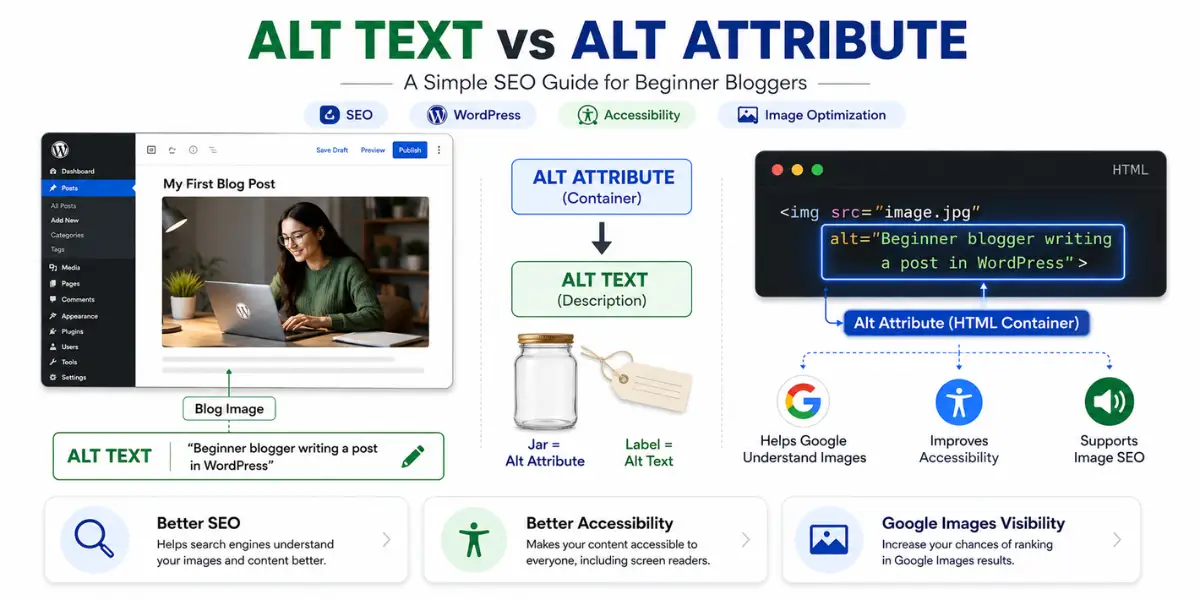
The alt attribute is the piece of HTML code that holds your alt text. It looks like this in the page source:
The text in the quotes is your alt text. The word alt before the equals sign is the attribute itself. WordPress adds this code automatically when you fill in the Alt Text field in the block editor. You never write or touch the HTML yourself.
If you leave the alt text field empty, WordPress still creates the alt attribute in the code. It just leaves it blank. An empty alt attribute on a meaningful image means Google has no context for what that image shows.
Alt Attribute vs Alt Text: What Is the Difference?
These two terms confuse beginners constantly because many blogs use them as if they mean the same thing. They do not. Here is the clearest way to separate them.
| Question | Alt Attribute | Alt Text |
|---|---|---|
| What is it? | The HTML code container | The description you write |
| Who creates it? | WordPress creates it automatically | You write it in the Alt Text box |
| Who reads it? | Search engines locate the text here | Google, screen readers, and visitors |
| When image fails to load? | Stores your description to display | Your words appear in place of the image |
| Can you use keywords? | No direct control needed | Yes, once. Only if it fits naturally |
| SEO role? | Signals a description exists | Gives Google the actual image context |
| Common beginner mistake? | Thinking it requires manual coding | Leaving it empty or stuffing keywords |
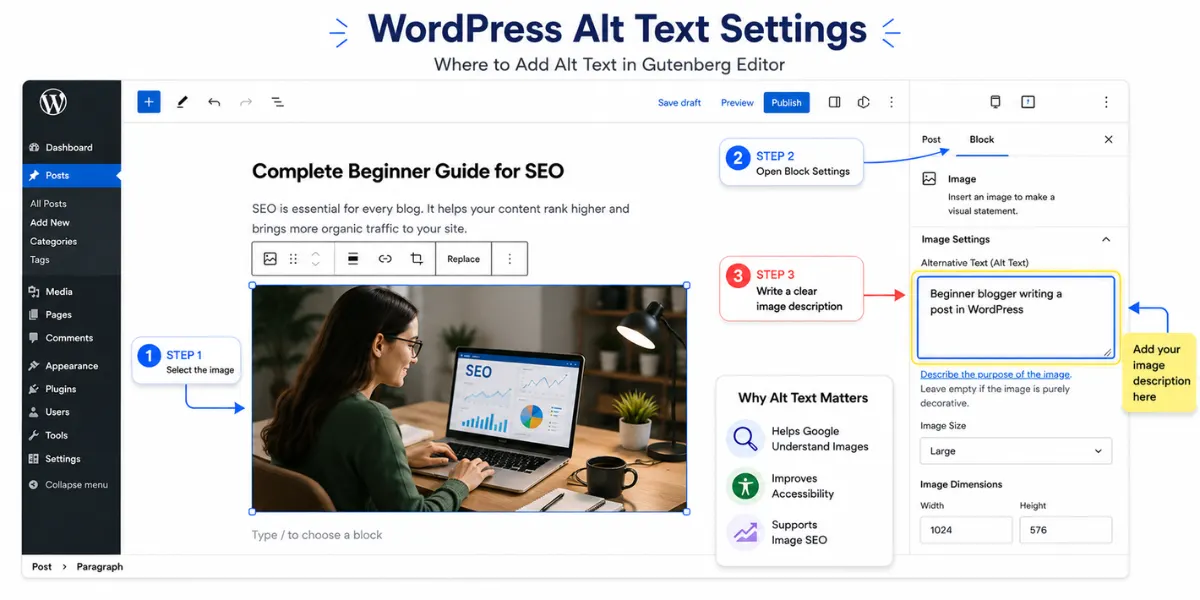
The Alt Text field inside the WordPress block editor sidebar. Type your description here and WordPress handles the rest.
Why Image Alt Text Matters for SEO
Google cannot see images the way you do. It relies entirely on your image alt text to understand what an image shows and how it connects to your page topic. A clear, accurate description sends strong on-page SEO signals, and those signals add up across every image on your blog.
Three direct SEO benefits
1. Your images can rank in Google Images. Image search sends real traffic. A visitor searching “WordPress alt text field” can land on your post through Google Images. But that only happens if your alt text matches what they searched for.
2. Your overall page signals become stronger. Google reads your entire page, including every image description. When all your alt text is accurate and relevant, Google builds a clearer picture of your post topic. This lifts your position in regular text search too.
3. Your SEO plugin score improves. Tools like RankMath check whether your focus keyword appears in at least one image alt text. Missing alt text on all images pulls your content score down and flags a content warning.
The accessibility benefit
Good alt text makes your blog usable for a wider audience. Visitors who use screen readers rely entirely on your descriptions to understand visual content. If you skip it, those visitors receive nothing. Good accessibility practice is also a quality signal Google increasingly rewards. The W3C accessibility guidelines confirm this clearly.
Good and Bad Alt Text Examples
The fastest way to understand image alt text is to see the difference side by side. Bad alt text is vague, empty, or stuffed with keywords. Good alt text describes the image the way you would explain a photo to someone who cannot see it.
7 Proven Alt Text Tips for Beginner Bloggers
These seven tips apply to every image on your blog: hero banners, product screenshots, tutorial diagrams, and everything in between. Follow all of them and your images will be fully optimised for both SEO and accessibility.
Write one clear line that explains the image. Keep it natural. Write the way you would describe a picture to a friend over the phone. Honest and simple.
One clear sentence is always enough. Long descriptions confuse both Google and screen readers. If you find yourself writing three lines, cut it down hard.
Use your focus keyword if the image genuinely shows what that keyword describes. If it does not match the image naturally, leave the keyword out entirely.
Do not fill the alt text with a list of SEO terms. Google treats this as spam. It actively damages your ranking rather than helping it in any way.
Screenshots, tool dashboards, charts, and tutorial graphics all carry meaning for your reader. Describe every image that teaches or shows something useful.
Shapes, dividers, background patterns, and icon decorations carry no content. An empty alt attribute tells screen readers to skip them. This is the correct behaviour.
Real screenshots from your own tools build trust with readers. They also signal genuine personal experience to Google. This is exactly what EEAT rewards most.
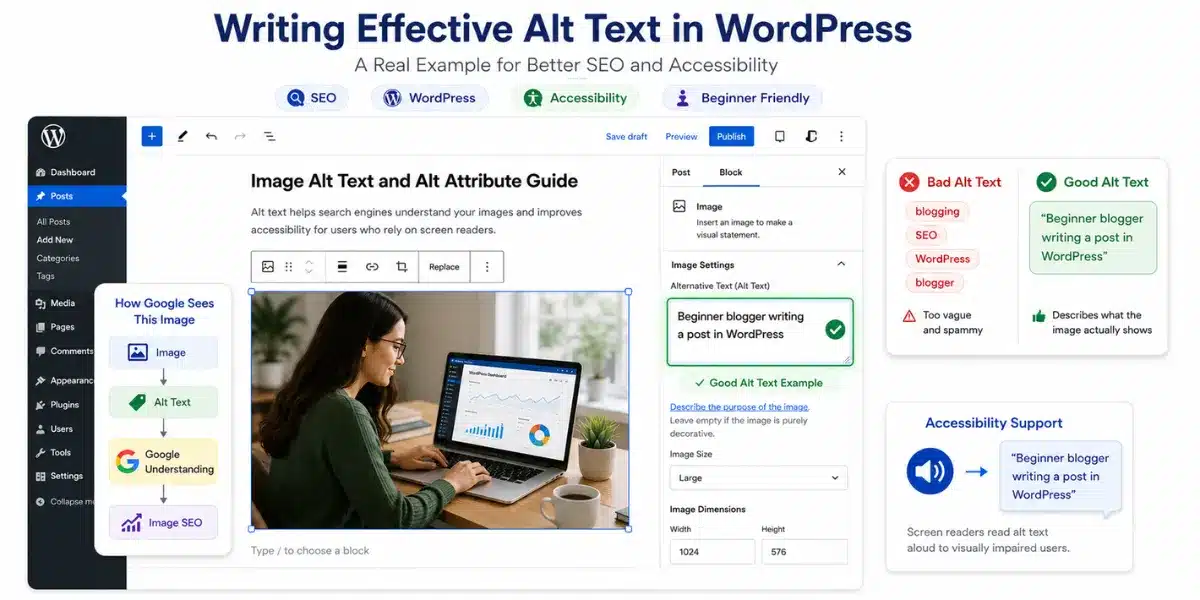
A real alt text description typed into the WordPress block editor. This is exactly what you need to do for every meaningful image.
Once your images are optimised, the next step is making sure your keywords are working just as hard across the rest of your post. I use Ubersuggest to find low-competition keywords that beginners can actually rank for. It shows search volume, keyword difficulty, and content ideas all in one free dashboard.
Should You Use Keywords in Alt Text?
Yes, but only when the keyword genuinely matches what the image shows. This is not a grey area. Forcing a keyword that does not describe the image is one of the most common on-page SEO mistakes beginners make.
image alt text, alt attribute, SEO images, beginner SEO, WordPress imagesimage alt text example written inside WordPress block editorOne keyword, placed once, inside a real description. That is the complete strategy. You do not need to use the keyword in every single image. Use it in the one image where it fits most naturally and leave it out of the rest.
To understand how keywords work across your entire post, not just in images, read my full guide on keyword density and modern SEO. It explains exactly how often to use your target phrase without triggering a penalty.
Which Images Need Alt Text and Which Do Not?
Not every image on your page needs a description. The rule is simple: if the image carries meaning for the reader, describe it. If it exists only for decoration, leave the alt field empty.
- Tool screenshots and dashboards
- Hosting control panels
- Keyword research tool results
- Step-by-step tutorial graphics
- Charts, graphs, and income reports
- Product or pricing page screenshots
- Hero banner images at the top of posts
- Any image that teaches something
- Decorative dividers or borders
- Background design elements
- Icons used only for visual styling
- Abstract shapes or patterns
- Spacer images with no content
Real Alt Text Examples for Affiliate Bloggers
Since The Passive Circle focuses on affiliate marketing for beginners, these examples cover the exact type of images you will use most in your posts. Each one follows the correct format: short, descriptive, and natural.
- alt Hostinger control panel for a new WordPress blog setup
- alt Systeme.io funnel builder showing a simple opt-in page for beginners
- alt Keyword research example inside Google Keyword Planner for new bloggers
- alt Income report chart showing my first affiliate commission earned
- alt Google Search Console dashboard showing first impressions on a new blog
- alt RankMath SEO score panel inside the WordPress block editor
- alt LowFruits keyword difficulty results for a beginner affiliate blog
- alt MailerLite email campaign dashboard showing open rate results
Every example sounds like a natural description, not a keyword list. All of them tell you exactly what the image shows, which is precisely what Google needs to connect your images to your content topic.
Real screenshots also build reader trust. They show that your content comes from tools you personally use, which strengthens your EEAT signals. If you are writing your first affiliate blog post, make this habit part of your workflow from day one.
How to Add Alt Text in WordPress (Step by Step)
You do not need to touch any code. WordPress handles everything the moment you type your description into the correct field in the block editor.
Pre-Publish Checklist for Every Post
Run through this before hitting publish on any post. It takes under two minutes and covers every image SEO requirement in one pass.
- ✓Did I add alt text to every meaningful image in this post?
- ✓Does each description clearly explain what the image shows?
- ✓Is each description short, five to twelve words, one sentence maximum?
- ✓Did I avoid keyword stuffing in every single image description?
- ✓Did I leave decorative images with an empty alt field?
- ✓Did I use real screenshots instead of stock photos wherever possible?
- ✓Is my focus keyword used naturally in at least one image description?
For a broader look at everything that needs checking before you publish, my keyword optimisation guide for beginners walks through the full on-page SEO checklist post by post.
- A beginner blogger who wants every SEO signal working for you
- Writing review or tutorial posts with lots of screenshots
- Trying to rank in Google Images as an extra traffic source
- Using RankMath and want a consistent green content score
- Building long-term organic traffic without paid ads
- Decorative dividers and background design elements
- Icons used only for visual styling with no content value
- Spacer images that carry no meaning for the reader

One Small Habit That Pays Off for Years
Alt text takes about ten seconds per image. Those ten seconds improve your SEO signals, make your blog accessible to a wider audience, and give your images a real chance to appear in Google Images results. Make it part of your publishing routine starting today.
Start Your Blog with Hostinger Today →Frequently Asked Questions
The alt attribute is the HTML code container attached to every image on your page. The alt text is the description you write that goes inside it. WordPress creates the alt attribute automatically for every image. You only ever write the alt text, the actual description, in the block editor sidebar field.
Google cannot see images the way humans do. It reads your alt text to understand what an image shows and how it connects to your page topic. Clear alt text strengthens your on-page SEO signals, helps your images rank in Google Images, and improves your content score in plugins like RankMath.
Five to twelve words is the ideal range. One clear sentence is always enough. Long descriptions confuse both Google and screen readers. Keep it short, accurate, and natural. Write it exactly the way you would describe the image to someone who cannot see it.
Only if the keyword genuinely describes what the image shows. Use it once, naturally, inside a real description. Never force a keyword that does not match the image content. Keyword stuffing in alt text is treated as spam by Google and can hurt your rankings instead of improving them.
For decorative images, leaving it empty is actually the correct approach. For meaningful images like screenshots, charts, or tutorial graphics, an empty alt text means Google has zero context for that image. It weakens your SEO signals and makes your blog inaccessible for visitors who use screen readers.
Yes, and it is worth doing systematically. Updating old images with clear alt text helps Google better understand your existing content. It can improve rankings for older posts and gives your images a chance to appear in Google Images for the first time. Start with your highest-traffic posts for the biggest impact.
In WordPress, click the image inside the block editor and look at the Alt Text field in the right sidebar. On a published page, right-click the image in your browser, select Inspect, and find the word alt inside the image code. Whatever appears in quotes after alt= is the current description for that image.
Yes, accessibility was actually the original purpose of alt text. Screen readers read your descriptions aloud for visitors who cannot see the screen. Clear, accurate alt text makes your blog usable for a much wider audience. Google increasingly rewards sites that provide strong accessibility signals, so good alt text serves both goals at the same time.