This post may contain affiliate links. If you purchase through these links, I may earn a small commission at no extra cost to you. Read our full Affiliate Disclosure

How to Fix Missing Keywords in Rank Math
If you use Rank Math SEO for WordPress, you may have noticed that sometimes your keywords don’t show in the Posts list. It’s frustrating, but don’t worry—this is a common issue, and you can fix it without breaking your site. I’ll walk you through everything step by step.
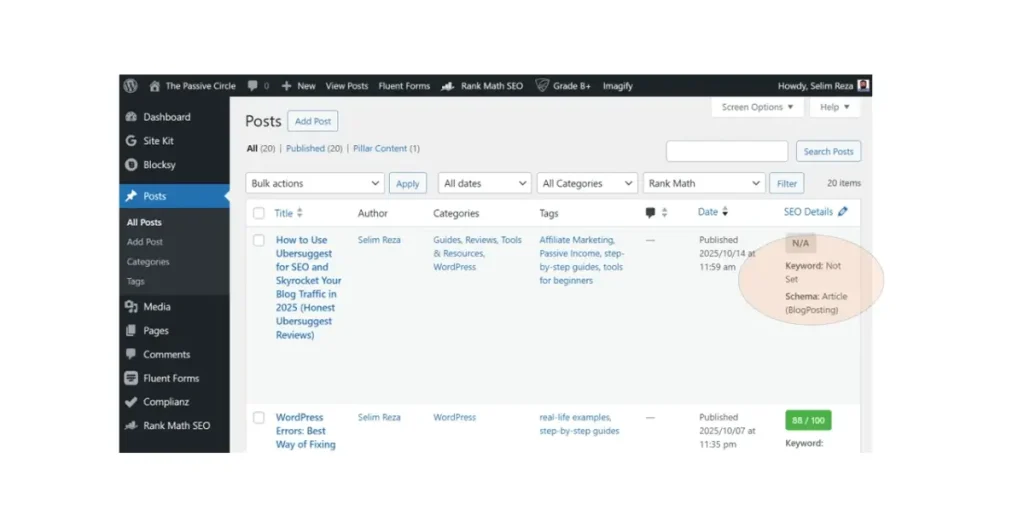
Table of Contents
Why Keywords Might Not Show
Before we jump into the fixes, it’s helpful to understand why this happens:
- Database tables missing or corrupted – Rank Math stores your SEO info in its own database tables. If they’re broken, keywords won’t appear.
- Plugin conflicts – Sometimes other plugins interfere with Rank Math’s admin display.
- Theme conflicts – Themes like Blocksy can sometimes cause JavaScript errors in the admin area.
- Cache issues – Browser or server cache can prevent updated info from showing.
- Plugin bugs – Occasionally, a new Rank Math version introduces a bug.
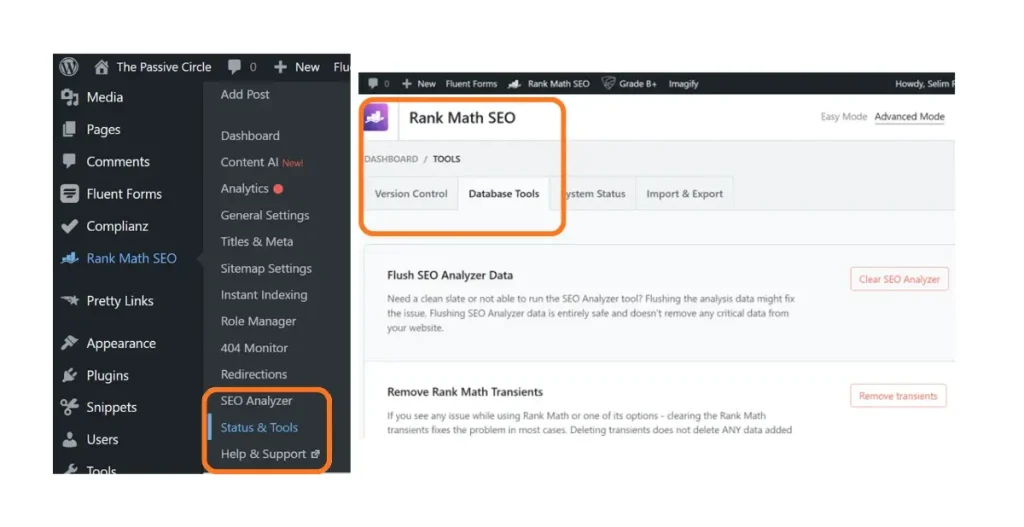
Step 1: Check Rank Math Database Tables
- Go to Rank Math → Status & Tools → Database Tools.
- Click Re-create Missing Database Tables.
- Wait 30–60 seconds for Rank Math to rebuild the indexes.
- Refresh your Posts list to see if your keywords appear.
This fixes most cases where keywords disappear after an update.
Step 2: Reset Rank Math Index
If keywords still don’t appear:
- Go to Rank Math → Status & Tools → General Settings.
- Look for SEO Analysis or Re-index Posts.
- Click Update SEO Scores or Re-index.
- Wait a minute and refresh your posts page.
Make sure to clear any cache after this step.
Step 3: Check for Theme Conflicts
Sometimes the issue isn’t Rank Math—it’s your theme.
- Temporarily switch to a default WordPress theme like Twenty Twenty-Three.
- Check your posts list.
- If keywords appear, your theme (e.g., Blocksy) is conflicting.
- If still missing, the problem is likely Rank Math itself.
Step 4: Enable Debug Mode
- Open your
wp-config.phpfile. - Add or edit these lines:
define('WP_DEBUG', true); define('WP_DEBUG_LOG', true); define('WP_DEBUG_DISPLAY', false); - Visit your posts list again, then check
wp-content/debug.logfor Rank Math-related errors.
This helps you identify JavaScript or database issues preventing keyword display.
Step 5: Reinstall Rank Math
If nothing works:
- Export your Rank Math settings first.
- Delete Rank Math from WordPress.
- Reinstall and import your settings.
- Run Re-create Missing Database Tables and Re-index Posts again.
Step 6: Consider Rolling Back to a Previous Version
- Go to Plugins → Installed Plugins → Rank Math → Rollback (if available).
- Select the previous stable version and click Rollback.
- Clear caches and re-index your posts.
Always backup your site first before rolling back.
Summary Table: Fixing Missing Keywords in Rank Math
| Step | What to Test / Do | Why It Helps |
|---|---|---|
| 1 | Check Rank Math Database Tables | Ensures Rank Math has all required tables created correctly. Missing or corrupted tables can prevent keyword data from being stored. |
| 2 | Reset Rank Math Index | Forces Rank Math to rebuild SEO score and keyword index so posts show correct keyword data in the All Posts list. |
| 3 | Check for Theme Conflicts | Some custom themes override Rank Math columns or scripts. Switching to a default theme helps identify conflicts quickly. |
| 4 | Enable Debug Mode | Shows hidden PHP or JavaScript errors that may block Rank Math’s data-sync routines. |
| 5 | Reinstall Rank Math | Fixes corrupted plugin files or incomplete updates that can cause metadata not to sync properly. |
| 6 | Consider Rolling Back to a Previous Version | If the problem began after a recent update, rolling back may restore normal keyword display. |
| 7 | Clear All Caches (LiteSpeed, Object, CDN) | Removes stale cached data so Rank Math can re-fetch and display the correct main keyword and SEO score. |
Extra Tips
- Clear browser and site cache after every step.
- Deactivate other plugins temporarily to check for conflicts.
- Check Rank Math support forums for issues with your specific version.
- Don’t skip updates for too long—older versions may lack security fixes.
Quick Takeaway
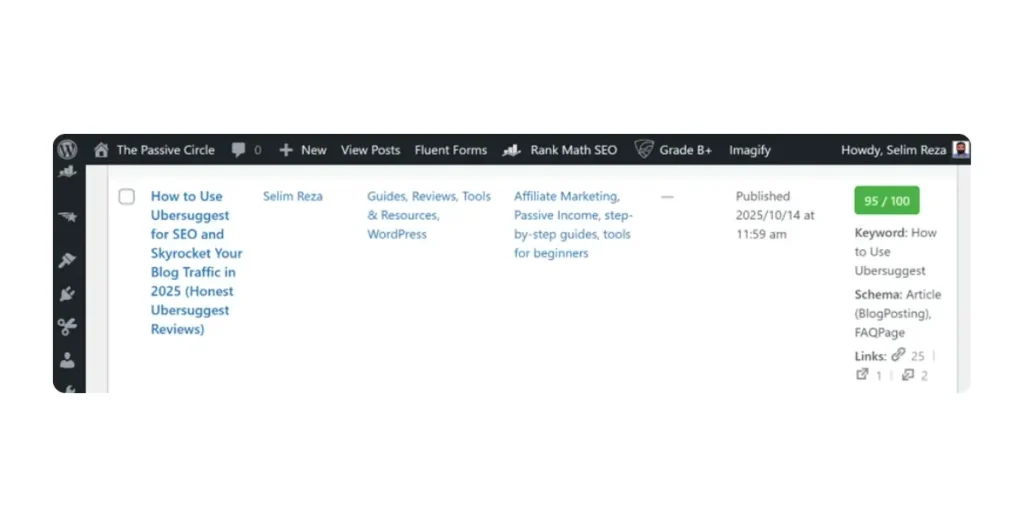
Missing keywords in Rank Math can be caused by database issues, theme/plugin conflicts, or bugs. Following these steps usually fixes the problem:
- Re-create database tables
- Re-index posts / update SEO scores
- Test theme conflicts
- Enable debug mode
- Reinstall Rank Math if needed
- Roll back to a previous version if necessary
Patience is key—sometimes WordPress needs a minute or two to process all changes.
This approach works for beginners and advanced users alike. Follow it carefully, and your keywords should appear again, helping you stay on track with your SEO.
FAQ: Fix Missing Keywords in Rank Math
Q1: Why are my keywords not showing in Rank Math?
A: This usually happens due to missing or corrupted database tables, theme/plugin conflicts, caching issues, or a bug in the Rank Math plugin.
Q2: Will deactivating all plugins fix missing keywords?
A: Sometimes. Deactivating other plugins helps identify conflicts, but it’s not always enough. Re-creating Rank Math database tables and re-indexing posts is often necessary.
Q3: Can my theme cause missing keywords in Rank Math?
A: Yes. Some themes, like Blocksy, can conflict with the admin scripts that display keywords. Temporarily switching to a default WordPress theme can help identify this.
Q4: Do I need to reinstall Rank Math to fix this issue?
A: Only if other methods don’t work. Reinstalling Rank Math and re-importing your settings often resolves stubborn bugs.
Q5: Can I roll back to an older Rank Math version?
A: Yes. Rank Math allows you to roll back to a previous stable version via the plugin page. Always back up your site before rolling back.
Q6: How long does it take for keywords to appear after re-indexing?
A: Usually 30–60 seconds, but it can take a few minutes depending on your number of posts and server performance. Clear your browser and site cache if it doesn’t appear immediately.
Q7: Will clearing cache help with missing keywords?
A: Yes. Both browser cache and server-side cache (LiteSpeed, WP Rocket, etc.) can prevent updated keywords from displaying. Always clear cache after re-indexing or re-creating tables.
Read my another blog posts about: Ran out of PHP memory while Backuply was running
WordPress Errors: Best Way of Fixing Common WordPress Errors
New in Affiliate Marketing? Grab my Beginner’s Affiliate Starter Toolkit for free, so you never miss a step. Or check out my full affiliate marketing step-by-step guide for beginners.
Here are my most recent posts you might find helpful.
- How to Do Keyword Research for Free (Find Easy Keywords for Beginners)

- Link Juice in SEO: A Simple & Easy Guide for Beginners

- How Bloggers Make Money With Affiliate Marketing Funnels (Simple Guide)

- Systeme.io Pricing Explained for Beginners (Free vs Paid Plans)

- Best Email Marketing Tools for Beginners With No Website