This post may contain affiliate links. If you purchase through these links, I may earn a small commission at no extra cost to you. Read our full Affiliate Disclosure
I didn’t plan to write this post.
Honestly.
I just wanted to move my website to a better hosting and get back to writing blog posts.
But what started as a “simple migration” turned into a long journey full of confusion, broken pages, DNS errors, SSL delays, and moments where I honestly thought:
“Did I just break my website?”
If you’re a beginner and you’re:
- Thinking about Hostinger
- Already moved your site
- Or stuck with DNS, SSL, or domain errors
This guide is for you.
It is about Hostinger website setup for beginners.
I’m not here to impress you with technical terms.
I’m sharing exactly what happened, what went wrong, what I learned, and how everything finally worked.
If this post saves you even one hour of panic, it did its job.
Is This Guide for You?
Let me be clear who this is written for.
This guide is for you if:
- You are new to affiliate marketing or blogging
- You bought hosting but feel lost after login
- You see messages like “Domain not connected”
- Your site works in one browser but not another
- SSL shows “Installing” forever
- You’re afraid to touch DNS settings
This guide is not for developers.
I’m writing this as someone who:
- Is still learning
- Makes mistakes
- Reads docs, asks support, tests things
- And shares the full journey
If you’re trying to escape the 9–5 by building something online, you’re in the right place.
Table of Contents
Why should I use Hostinger?
Before choosing Hostinger, I had the same fears you probably have:
- “Will this be too technical?”
- “What if I mess something up?”
- “What if support doesn’t help?”
I chose Hostinger for simple reasons, not marketing hype:
- Affordable plans for beginners
- Free SSL included
- Easy WordPress setup
- Migration support available
- Clean dashboard without overwhelm
I wasn’t looking for the “best hosting in the world.”
I was looking for:
A hosting that doesn’t make beginners feel stupid.
And honestly, Hostinger fits that mindset well.
Yes, problems happened.
But support, tools, and structure helped me fix them without hiring anyone.
If you’re starting your first site or planning to move, Hostinger is still one of the most beginner-friendly options I’ve used.
(This post contains affiliate links. If you choose to use the same tools I use, I may earn a small commission at no extra cost to you.)
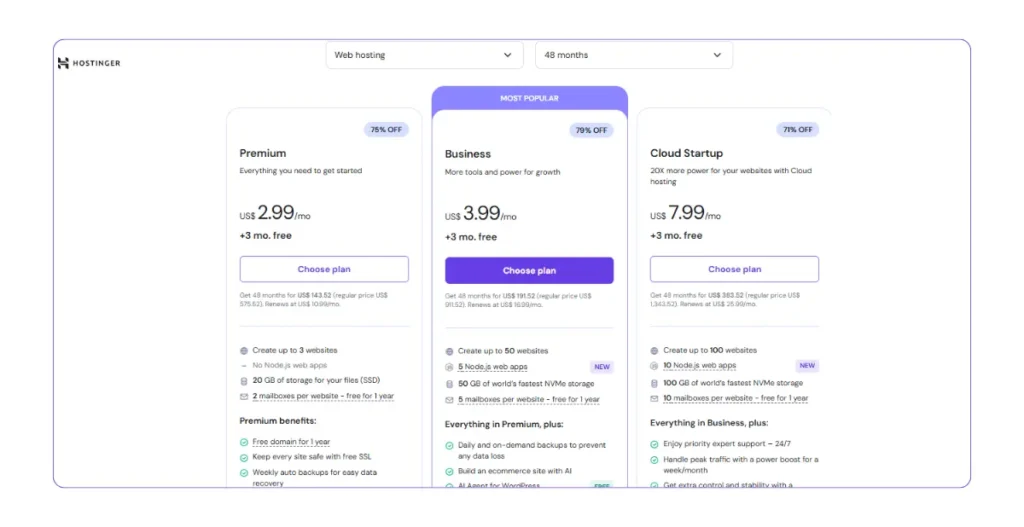
Hostinger Website Setup for Beginners

How do I build my website on Hostinger
Once I purchased my Hostinger plan, I honestly felt relieved.
The hardest decision was done.
Now it was just:
“Click a few buttons and my site will be live.”
That’s what I thought.
Here’s what actually happened.
Step 1: Creating the Website Inside Hostinger (My First Hidden Mistake)
After logging into Hostinger, I followed the obvious steps:
- Went to Websites
- Clicked Create Website
- Chose WordPress
- Let Hostinger install WordPress automatically
This part was honestly smooth.
No technical headache.
No database setup.
No confusing options.
At this stage:
- WordPress was installed
- Hosting was active
- I could access WP Admin
Everything looked fine.
But there was one important thing missing.
👉 My domain was not connected yet.
The Mistake I Didn’t Realize I Was Making
Here’s the part I didn’t understand at the time.
On my old website, I was using a 2FA (Two-Factor Authentication) security plugin inside WordPress.
I installed it earlier for security.
Which is a good thing.
But I didn’t realize something important:
👉 During hosting migration or fresh setup, active 2FA can block access silently.
What happened was:
- Hostinger tried to verify WordPress access
- Migration/setup tools attempted login
- The 2FA plugin expected a second authentication step
- Hostinger couldn’t complete that step
From my side:
- Hosting looked active
- WordPress looked installed
- But setup and migration attempts failed or got stuck
No clear error message.
No warning about 2FA.
Just… nothing worked properly.
As a beginner, this was confusing because:
“I can log in, so why is the setup failing?”
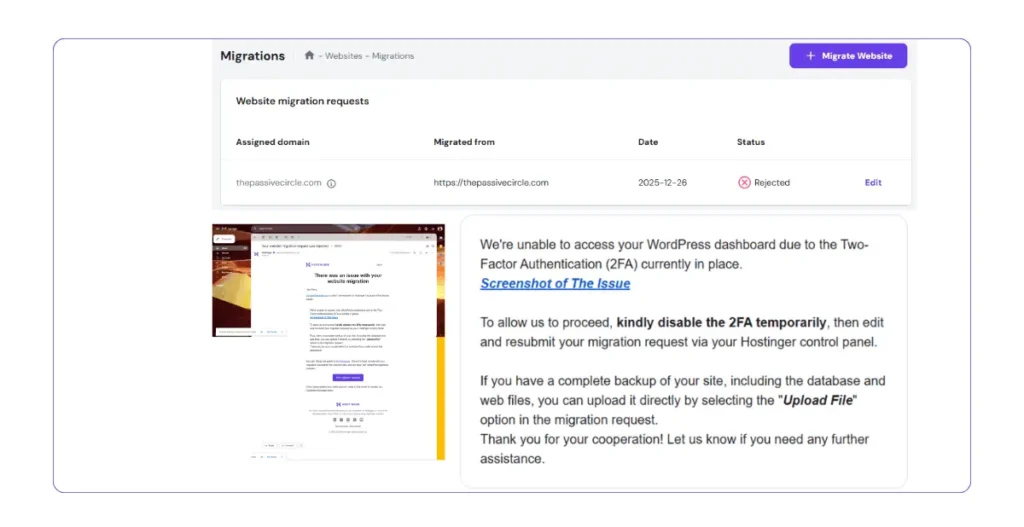
Couple of Hours later I got an Email from Hostinger that shows the actual reason: We’re unable to access your WordPress dashboard due to the Two-Factor Authentication (2FA) currently in place.
What This Caused (Without Me Knowing)
Because of the active 2FA plugin:
- Some migration attempts failed
- Some setup processes stopped halfway
- Hostinger tools couldn’t fully verify WordPress
- I thought hosting or DNS was broken
But the real issue was security blocking automation.
This is something most beginner tutorials never mention.
What I Learned From This Mistake
Here’s the simple beginner rule I learned the hard way:
👉 Before migration or hosting setup, temporarily disable security plugins like 2FA.
Not forever.
Just during setup.
Once everything is stable:
- SSL active
- Domain connected
- HTTPS enforced
Then you turn security back on.
Why I’m Sharing This Honestly
I could have skipped this part and made the journey look perfect.
But beginners need to hear this.
Because if you’re:
- Using a 2FA plugin
- Or heavy security plugins
- And setup or migration keeps failing without clear reason
This might be your hidden blocker too.
Beginner Tip:
If WordPress migration or setup keeps failing without clear errors, temporarily disable 2FA or security plugins before trying again.
This single step can save hours.
Step 2: Realizing My Domain Was Elsewhere
My domain thepassivecircle.com was registered with ExonHost, not Hostinger.
That means:
- Hostinger was hosting the site
- ExonHost was controlling the domain
This setup is very common.
But beginners are rarely warned what comes next.
From this moment onward:
- DNS matters
- Nameservers matter
- Timing matters
And this is where most confusion starts.
Step 3: First Warning Messages Appear
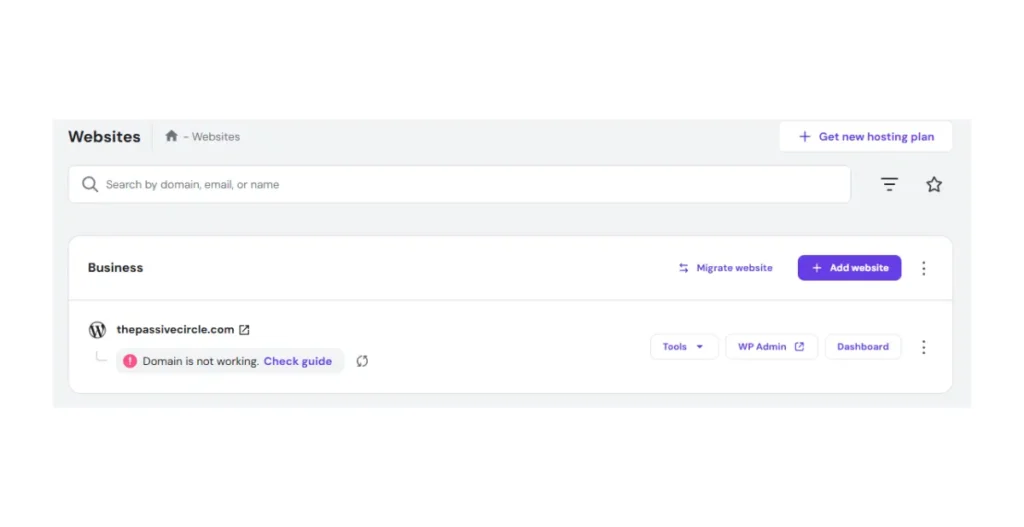
Inside Hostinger, I started seeing messages like:
- Domain is not working
- Domain isn’t connected to your website
- SSL cannot be installed
- Website may not be accessible
At the same time:
- Sometimes my site loaded
- Sometimes it showed a Hostinger parking page
- Sometimes it worked only in incognito
As a beginner, this is terrifying.
You start thinking:
“Did I choose the wrong hosting?”
“Did I break something?”
“Should I cancel everything?”
But here’s the truth.
👉 Nothing was broken yet.
This was just the system waiting for DNS alignment.
Step 4: Hostinger Migration vs Fresh Setup Confusion
Because my site existed before, I also tried Hostinger migration.
This added another layer of confusion.
Some migration attempts:
- Failed
- Got stuck
- Showed partial success
At one point, I even asked myself:
“Should I migrate again?”
The answer (which I learned later) is important:

👉 If your files and database exist, migration already worked.
DNS and SSL problems do not mean migration failed.
This distinction saved me from repeating everything and making things worse.
Step 5: The IP Address Panic

This is where I really started doubting myself.
I saw different IP addresses at different times:
91.108.106.1782.198.228.175
I checked:
- Hostinger dashboard
- DNS tools
And results were inconsistent.

At this stage, I even verified DNS using basic network checks to confirm the domain was resolving correctly.
This confirmed the issue was not hosting, it was DNS and SSL propagation.
As a beginner, your brain immediately goes:
“Which one is correct?”
“Did I point DNS to the wrong server?”
Here’s the beginner-friendly truth:
- Temporary IPs can appear during setup
- Migration systems use temporary routing
- Only the IP shown inside Hostinger matters
Eventually, Hostinger clearly showed my final hosting IP:
82.198.228.175
That’s the only one I needed to care about.
Step 6: What I Did NOT Do (Very Important)
At this stage, I’m glad I didn’t panic.
I did not:
- Reinstall WordPress
- Buy another hosting plan
- Delete everything and start over
- Hire an “expert” out of fear
Instead, I slowed down and focused on understanding:
- DNS
- Nameservers
- Propagation time
That decision saved me money and stress.
Key Lesson from This Stage
If you’re here right now in your own journey, remember this:
Hosting setup problems are rarely permanent.
Most issues are timing + configuration, not failure.
This mindset alone can save you hours.
THE REAL PROBLEMS NO ONE WARNS BEGINNERS ABOUT
The Problems No One Warned Me About (DNS, Parking Pages & SSL Panic)
This is the part no tutorial prepares you for.
Every video shows:
- Click here
- Click there
- Done
But in real life, after setup, things break quietly.
No clear error.
No single fix.
Just confusion.
Here’s what actually happened to me.
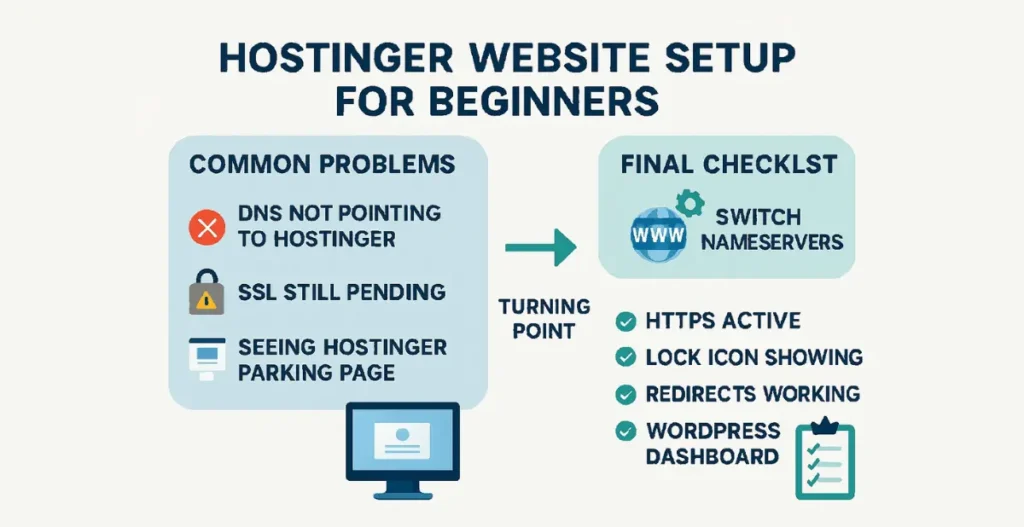
Problem 1: “Domain is not working” Even Though Hosting Was Active
Hostinger showed my website as:
- Created
- Active
- WordPress installed
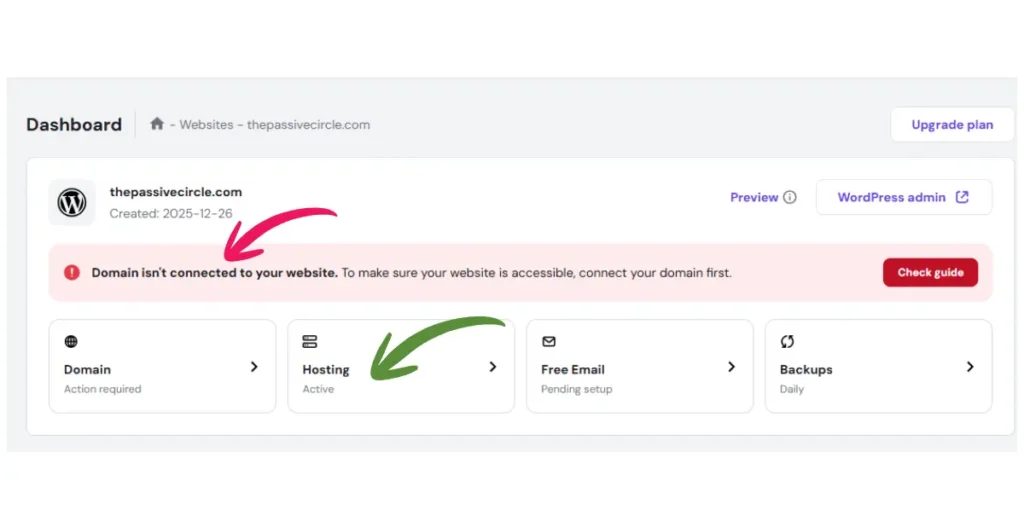
But right next to it, I kept seeing:
“Domain isn’t connected to your website”
As a beginner, this message messes with your head.
You think:
- Hosting is wrong
- Domain is wrong
- Maybe both are wrong
But here’s the truth:
👉 Hosting and domain are two different systems
👉 Hosting can be active while domain is still pointing elsewhere
This message does not mean failure.
It means DNS is not aligned yet.
Problem 2: The Hostinger Parking Page (Heart Attack Moment)
This one deserves its own section.

At one point, instead of my website, I saw:
- A Hostinger parking page
- Or a generic “site not found” page
My first thought:
“My site is gone.”
That’s a horrible feeling.
But here’s what that page actually means:
- DNS is pointing somewhere
- But hosting hasn’t fully attached the domain yet
- Or SSL / routing is not finished
👉 Parking page does NOT mean your content is deleted
It just means:
“We’re not done yet.”
Problem 3: Website Works in Incognito, Not in Normal Browser
This one confused me a lot.
- Site works in incognito
- Doesn’t work in normal browser
- Or works on mobile but not desktop
As a beginner, this feels random.
But the reason is simple:
- Browsers cache DNS aggressively
- Incognito ignores cache
- DNS propagation shows different results in different places
👉 This is normal during Hostinger DNS setup
If you see this:
- Do not reinstall anything
- Do not assume failure
Just wait and test again later.
Problem 4: Different IP Addresses Showing Everywhere
This was one of the most confusing moments for me.
I saw:
- One IP inside Hostinger
- Another IP via ping
- Another IP inside ExonHost DNS
As a beginner, you start Googling:
“Which IP is correct?”
Here’s the beginner-safe rule I learned:
👉 Trust only the IP shown inside your hosting provider
In my case:
- Final Hostinger IP:
82.198.228.175
Old IPs:
- Temporary
- From migration
- From parking systems
- From old DNS cache
They do not matter anymore.
Problem 5: SSL Stuck on “Installing” for Hours (or Days)
Why does Hostinger SSL get stuck?
This was the worst part.
Inside Hostinger, SSL showed:
Status: Installing
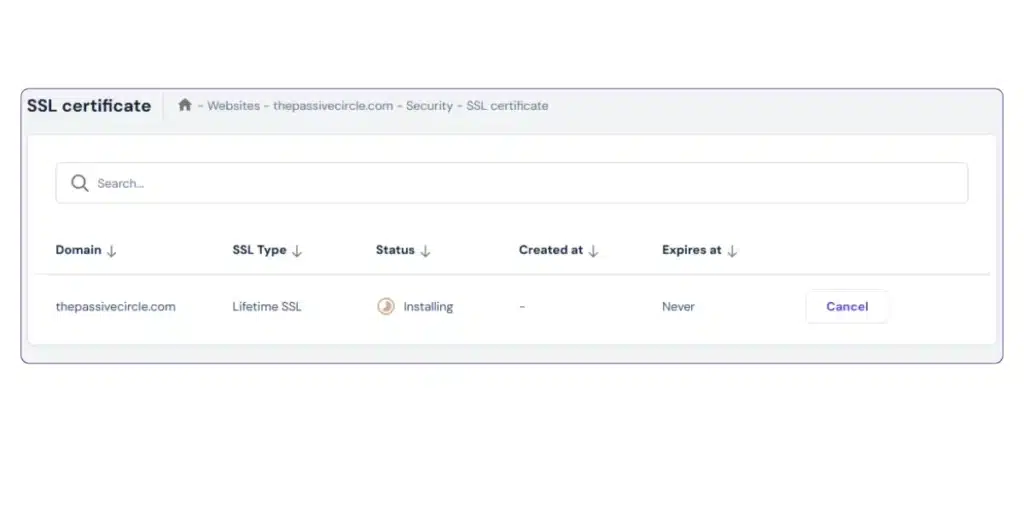
And it stayed like that.
For hours.
Then a full day.
As a beginner, this feels like:
“Something is wrong and no one is fixing it.”
I even contacted support.
The response was clear:
SSL cannot complete until DNS is clean and fully propagated.
This taught me an important lesson:
👉 SSL problems are almost always DNS problems
Not hosting.
Not WordPress.
Not plugins.
You can easily check DNS Propagation from online.
What I Almost Did (But Didn’t)
During this phase, I almost:
- Migrated again
- Deleted WordPress
- Changed random DNS records
- Installed multiple SSL plugins
If I had done that, I would’ve made things worse.
Instead, I paused.
That pause changed everything.
Key Lesson from This Section
If you’re facing these issues right now, remember this:
Confusion does not mean failure.
It means things are still syncing.
DNS and SSL work on time, not emotion.
The worst thing you can do is rush.
If you’re stuck at this stage right now, this is exactly the setup I’m using.
I didn’t get it right the first time either.
DNS, NAMESERVERS & THE TURNING POINT
The Turning Point: Understanding DNS (Without Technical Headache)
Up to this point, I was doing what most beginners do.
I was reacting.
- Error appears → panic
- Warning message → change something
- SSL stuck → assume failure
But nothing really changed until I understood one simple thing:
Hosting works when one system controls DNS clearly.
That was my turning point.
What I Finally Understood About DNS
Here’s DNS explained in the simplest way possible.
- DNS is like a road sign
- It tells the internet where your website lives
- If signs point to multiple places, visitors get lost
In my case:
- Domain was still controlled by ExonHost
- Hosting was on Hostinger
- DNS records were mixed
- SSL could not verify ownership
Nothing was “broken”.
It was just confusing for the system.
Manual DNS vs Nameservers (Beginner Reality)
At first, I tried:
- Manually editing A records
- Removing old IPs
- Keeping email records safe
This works… but only if you’re confident.
As a beginner, I realized something important:
👉 Nameservers are safer than manual DNS edits
Why?
Because:
- One provider controls everything
- Fewer chances to make mistakes
- SSL works faster
- Less guessing
The Decision That Changed Everything
I stopped editing individual DNS records.
Instead, I did one clean action:
👉 I switched my domain nameservers to Hostinger
I updated them to:
ns1.dns-parking.comns2.dns-parking.com
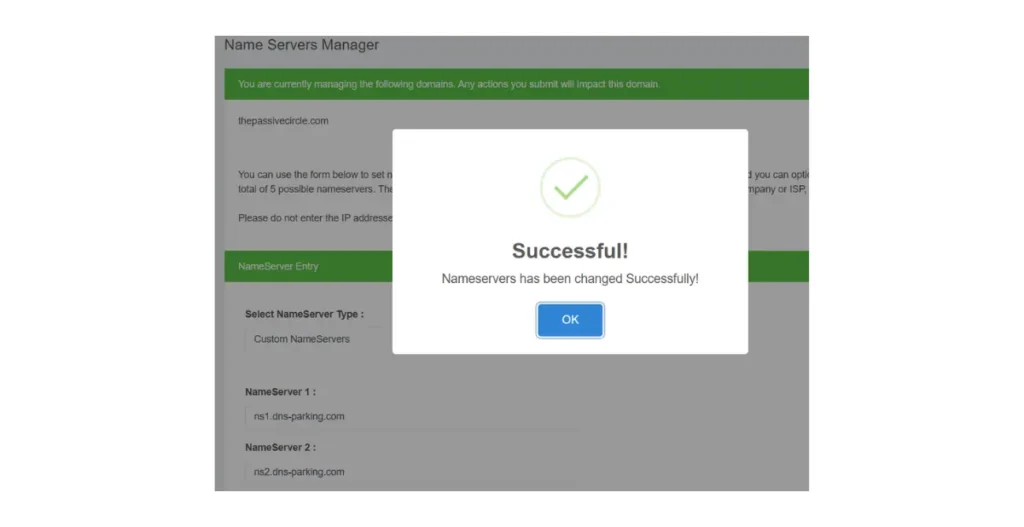
That was it.
No more A records.
No more IP guessing.
No more mixed control.
Why This Worked (Beginner Explanation)
Once nameservers were switched:
- Hostinger fully controlled DNS
- Domain ownership became clear
- SSL validation could finally succeed
- Parking page disappeared
- www and non-www aligned
This solved multiple problems at once.
That’s why I call it the turning point.
The Hardest Part: Doing Nothing
After changing nameservers, I wanted to keep fixing things.
But this time, I didn’t.
I did nothing.
I waited.
This was harder than clicking buttons.
But DNS propagation needs time:
- Sometimes 30 minutes
- Sometimes a few hours
- Rarely a full day
And that’s okay.
What I Learned Here (Important)
If you take only one lesson from this post, let it be this:
When DNS is clean, most problems solve themselves.
No plugin.
No re-migration.
No advanced config.
Just clarity.
HOSTINGER SSL FIX, HTTPS REDIRECT & THE “DID I BREAK WORDPRESS?” MOMENT
SSL Finally Turned Active (After All That Waiting)
After switching nameservers and doing nothing for a while, I checked Hostinger again.
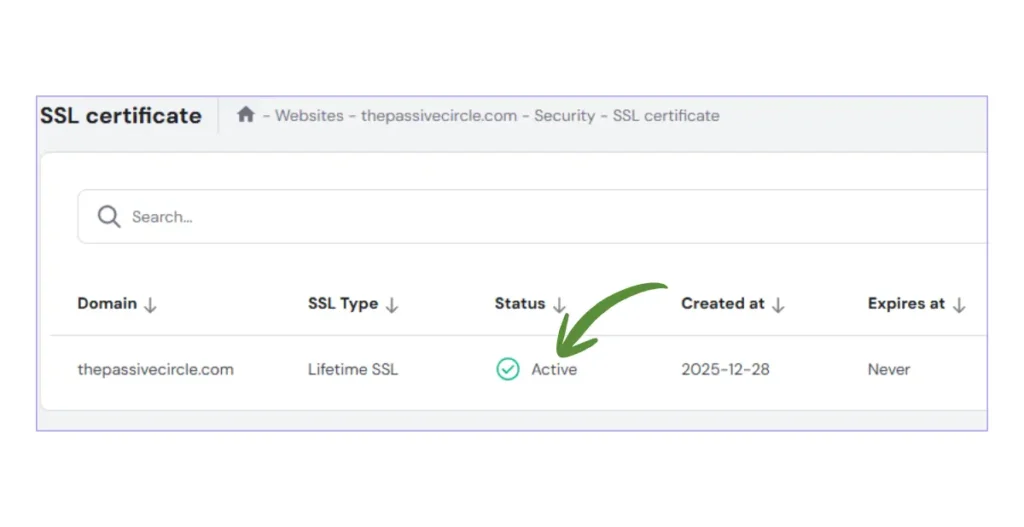
And there it was.
SSL Status: Active
No reinstall.
No extra plugin.
No manual certificate upload.
Just… active.
That moment felt like a deep breath after holding it for too long.
What SSL “Active” Actually Means
For beginners, SSL sounds scary. It’s not.
SSL simply means:
- Your site is secure
- URLs start with https
- Browsers show a lock icon 🔒
But one important thing is still missing at this stage.
👉 SSL active does NOT automatically force HTTPS
That’s the next step.
Enabling HTTPS Redirect (One Click, Big Impact)
Right after SSL became active, I asked Hostinger (via Kodee):

“Is my HTTPS redirection on?”
This means:
- HTTP → HTTPS
- www → non-www (or the other way)
I clicked Confirm.
That one click did a lot:
- No duplicate URLs
- Clean SEO signals
- No insecure access
- No confusion for visitors
Everything Looked Perfect… Until WordPress Complained
Just when I thought everything was done, WordPress threw another surprise.
Inside Settings → General, I saw errors like:
- “WordPress address is not valid”
- “Site address is not valid”
- “Email address is not valid”
And some fields were locked.
At that moment, I thought:
“Did I break WordPress now?”
But this is actually very common after SSL changes.
Why WordPress Shows These Errors After SSL
Here’s what’s happening behind the scenes:
- URLs changed from http → https
- Server-level redirect is now active
- WordPress tries to revalidate URLs
- During that moment, it can throw errors
This does NOT mean:
- WordPress is broken
- Database is corrupted
- Site is unsafe
It just needs a calm correction.
How I Fixed the WordPress Errors (Safely)
I did three simple things.
- Made sure both fields were:
https://thepassivecircle.com - Temporarily used a valid Gmail address for admin email
- Saved settings and logged in again
That’s it.
No plugin.
No code edit.
No database access.
Everything worked again.
Final HTTPS Check (Very Important)
After that, I opened incognito mode and tested:
https://thepassivecircle.comhttps://www.thepassivecircle.comhttps://www.thepassivecircle.com
All of them redirected to:
https://thepassivecircle.com
Blog posts loaded.
Lock icon appeared.
No warning pages.
This is how you know your setup is finally complete.
What This Stage Taught Me
This part taught me something important:
Final problems often appear right before success.
If you’re here:
- Don’t panic
- Don’t undo things
- Don’t rush fixes
Small adjustments are normal at the end.
FINAL CHECKLIST + MY HONEST RECOMMENDATION FOR BEGINNERS
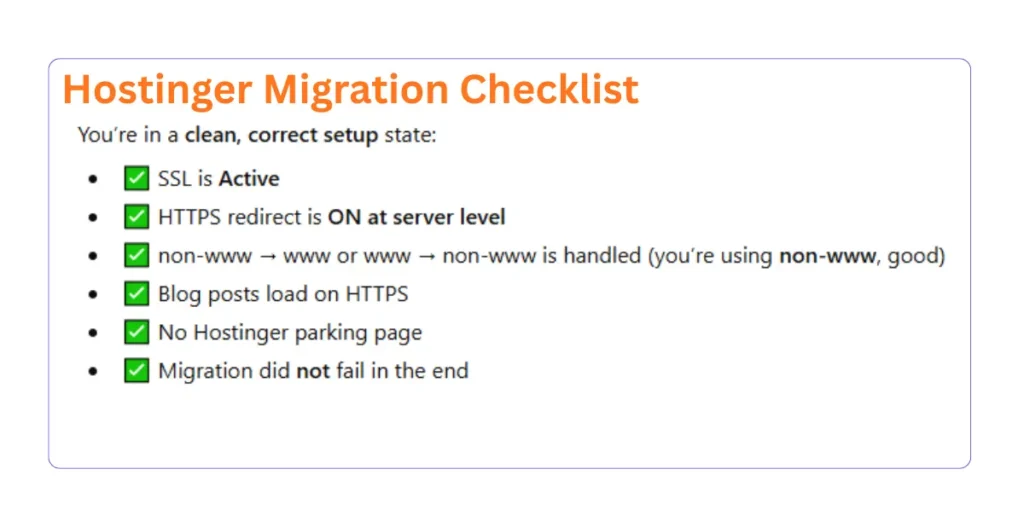
The Final Website Checklist (Before You Move On)
Before I touched anything else on my site, I did one last calm check.
If you’ve followed a similar journey, do this once and then stop touching settings.
Here’s the exact checklist I used.
✅ Final Technical Checks
- Homepage opens with https
- Lock icon 🔒 visible in browser
- Blog posts load with https
wwwredirects to non-www- No hosting parking page
- No mixed content warning
- WordPress dashboard accessible normally
If all of these are true, your setup is stable.
At this point, changing things will only create new problems.
Should You Re-Migrate If Something Failed Earlier?
This question comes up a lot, so let me answer it clearly.
No. Do not migrate again if:
- Your site files are present
- WordPress loads
- Content is visible
Migration failure messages usually relate to:
- Login access
- Temporary redirects
- DNS mismatch during setup
DNS and SSL issues do not mean migration failed.
Repeating migration often creates duplicate problems.
My Honest Experience with Hostinger (No Hype)
Now that everything is working, here’s my honest take.
What I liked
- Clean dashboard
- Beginner-friendly flow
- Free SSL included
- WordPress setup is simple
- Support actually explains things
- AI assistant helps beginners understand errors
What frustrated me
- DNS and SSL take time
- Error messages feel scary for beginners
- Some steps are not explained clearly upfront
But here’s the important part.
👉 None of the problems were permanent
👉 None required hiring an expert
👉 Everything was fixable with patience
That matters a lot for beginners.
Who I Recommend Hostinger For
Based on my experience, Hostinger is a good choice if you:
- Are building your first blog or affiliate site
- Want affordable hosting with essential features
- Don’t want to pay extra for SSL
- Are okay learning a bit along the way
- Prefer simplicity over advanced server control
If you expect:
- Instant setup
- Zero waiting
- No confusion at all
Then no hosting will fully satisfy you.
But if you’re willing to learn and grow, Hostinger is a solid place to start.
My Recommendation (Soft, Honest)
If you’re at the stage where you’re:
- Choosing hosting
- Or planning to move your site
- Or already stuck in DNS or SSL confusion
I’d still recommend starting with Hostinger.
Not because it’s perfect.
But because it lets beginners make mistakes and still recover.
I broke my setup more than once during this migration.
And that’s why I’m comfortable recommending this hosting to beginners.
If you want a beginner-friendly hosting that you can grow with, Hostinger is a practical starting point.
Final Words (From One Beginner to Another)
This journey taught me something important.
You don’t fail at hosting.
You just learn it step by step.
If you’re reading this while:
- Feeling stuck
- Feeling confused
- Feeling scared to touch settings
I’ve been there.
Take a breath.
Slow down.
Fix one thing at a time.
Your website is not as fragile as it feels.
What You Can Do Next
Now that your site is stable, focus on:
- Writing content
- Learning SEO
- Building traffic
- Sharing your journey
That’s exactly what I’m doing.
FAQs About Hosting Migration
What is hosting migration?
Hosting migration means moving your website from one hosting provider to another.
That’s it.
No redesign.
No new site.
Just changing where your website lives.
In my case, I moved my WordPress site to Hostinger.
The content stayed the same.
Only the server changed.
How to migrate a hosting server safely?
From my experience, the safest way is:
Take a full backup first
Use one hosting provider at a time
Don’t touch DNS until hosting is ready
Avoid changing too many things at once
I made mistakes because I rushed.
What saved me was having backups and patience.
Migration is not dangerous.
Rushing is.
Will I lose my site if migration fails?
Short answer: No, if you have a backup.
I broke my setup more than once.
My site never disappeared.
Why?
WordPress files were still there
Database was intact
Hosting was active
Worst case, the site doesn’t load temporarily.
That feels scary.
But it’s fixable.
Should I re-migrate if something breaks during migration?
No.
This is important.
Most migration issues are caused by:
DNS not updated yet
SSL not active
Cache issues
Plugin conflicts
Re-migrating usually creates new problems.
Fix the root cause first.
Migration failure is rarely the real problem.
What is SSL and why is it used?
SSL is what gives your site HTTPS and the lock icon.
It does three things:
Encrypts data
Builds visitor trust
Helps SEO
Without SSL, browsers show warnings.
That alone can scare visitors away.
How to activate an SSL certificate?
On Hostinger, SSL is automatic after DNS is correct.
The key point beginners miss:
👉 SSL will not activate if DNS or nameservers are wrong.
Once DNS is fixed:
SSL installs automatically
HTTPS works
Redirects can be enabled
No manual coding needed.
Why is Hostinger SSL stuck on “installing”?
This happened to me.
The real reasons usually are:
Domain not pointing to Hostinger correctly
Old A records still active
Nameservers not fully propagated yet
SSL doesn’t fail randomly.
It waits until DNS is clean.
Once I fixed DNS and waited, SSL activated on its own.
What causes SSL connection errors?
Common beginner causes:
Forcing HTTPS before SSL is active
Mixed content from old HTTP links
DNS still pointing to old hosting
Security plugins blocking verification
SSL errors look scary.
They’re usually configuration issues.
How to fix SSL certificate error in Chrome?
Here’s what worked for me:
Wait for SSL to become active
Clear browser cache
Open site in incognito
Check both HTTP and HTTPS versions
Most Chrome SSL errors disappear once DNS settles.
Do I need to change nameservers for Hostinger?
You have two options:
Change nameservers to Hostinger
Or keep current nameservers and update A records
I switched nameservers.
It reduced confusion.
For beginners, nameserver switching is simpler.
Is changing nameservers risky?
No.
It sounds scary, but it’s normal.
The only risk is temporary downtime, not data loss.
Your files don’t move.
Only traffic routing changes.
I changed nameservers and my site survived just fine.
Why does www not work but non-www works?
This confused me a lot.
It usually means:www record is missing
Redirect not set properly
DNS still propagating
Once SSL and DNS were correct, Hostinger handled the redirect automatically.
How long does DNS propagation take?
Anywhere from:
A few minutes
To 24 hours
Sometimes up to 48 hours globally.
That waiting period feels long.
But it’s normal.
Nothing is broken during this time.
Can security plugins or 2FA break migration?
Yes.
This was one of my biggest mistakes.
Security plugins can:
Block migration requests
Lock admin access
Break verification steps
2FA adds another layer that migration tools can’t pass.
Lesson learned:
Disable security plugins before migration.
Should I disable plugins before migration?
Yes. Especially:
Security plugins
Firewall plugins
Login protection plugins
2FA tools
You can re-enable them after everything works.
Migration is easier without locks.
Is it safe to enable HTTPS redirect before SSL is active?
No.
If you force HTTPS too early:
Site may not load
Browser errors appear
SSL verification can fail
Always wait until:
SSL shows “Active”
HTTPS loads correctly
Then enable redirect.
How do I know my migration is finally complete?
This is my personal checklist:
Homepage loads with HTTPS
Blog posts open correctly
No Hostinger parking page
SSL shows active
www redirects properly
Admin panel works
If all these pass, stop touching settings.
At this point, your setup is stable.
Final Note (From Me to You)
If you’re reading these FAQs while feeling stuck:
You’re not failing.
You’re learning.
I made the same mistakes.
More than once.
And my site is still running.
Take it slow.
Fix one thing at a time.
You’re closer than you think.