
If you’re using the Blocksy theme, you already know how clean and modern it looks. But there’s one small problem: the Table of Contents often sits inside the blog body and doesn’t look like a professional sidebar.
In this tutorial, I’ll show you exactly how to turn your Easy Table of Contents (Easy TOC) into a beautiful floating sidebar — perfectly aligned with Blocksy’s layout, styled to match your theme colors, and hidden on mobile for a clean experience.
Why Add a Floating Table of Contents?
A floating TOC improves:
- Navigation—Readers can jump to sections easily
- User Experience—Feels like a professional knowledge base
- SEO—Search engines understand your headings better, improving rankings
- Blocksy + Easy TOC = a powerful combo, if styled right.
One of my friends asked me for help. At first, I didn’t know what to say. Then, I think, why not! Let’s try! And here is the outcome I’m sharing with you. You don’t need to go through the extreme research and failure I had to face.
Here are the challenges:
- The free plan of Blocksy only supports a single sidebar (either left or right). Blocksy’s dual sidebar (“both sidebars”) layout is a Pro feature.
- Easy Table of Contents (EToC) free version doesn’t have a direct “float left outside content” or “sticky” toggle in its UI.
So, what should we do? This is the plan:
- Install & Set Up Easy Table of Contents
- Check Blocksy Layout Width
- Find Your TOC Container ID
- Add CSS to Float & Style the TOC
- Save & Test
Step 1: Install & Set Up Easy Table of Contents
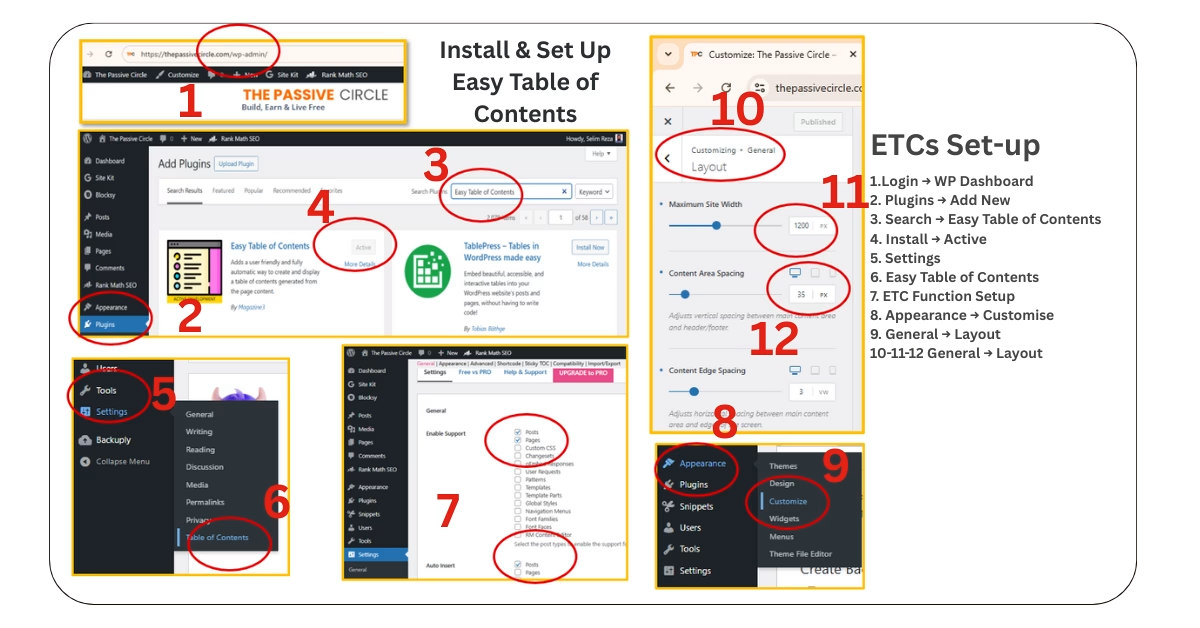
- Go to Plugins → Add New
- Search for “Easy Table of Contents”
- Install and Activate
Configure:
- Enable auto‑insert on posts
- Choose which heading levels (H2, H3, etc.)
- Enable smooth scroll
Tip: You don’t need premium just to float it — we’ll handle that with CSS.
Easy Table of Contents setup
- Now, go to settings – Table of Contents
Easy Table of Contents Configure (in details)
General
- Enable Support – 1.Posts 2.Pages
- Auto Insert – Posts
- Position – Before first heading (default)
- Show when – 2 or more headings are present
- Display Header Label- ‘tick’ Show header text above the table of contents.
- Toggle on Header Text – ‘tick’ Allow the user to toggle the visibility of the table of contents on header text
- Header Label – Table of Contents
- Header Label Tag – p (default)
- Toggle View – ‘tick’
- Initial View – keep it blank
- Show as Hierarchy – ‘tick’
- Counter – Decimal (defauly)
- Counter Position – Inside
- TOC Loading Method – Java script (default)
- Smooth Scroll – ‘tick’
- Exclude href from url – keep it blank
- TOC AMP Page Support – keep it blank
Appearance
- Width – Fixed 250px
- Alignment – None (default)
- Heading Text Direction – Left to Right (LTR)
- Enable Wrapping – (Tick)
- Headings Padding – Top -5px, Botom-5px, Left -10px, Right- keep blank
- Font Option
- Title Font Size -120%
- Title Font Weight – Medium
- Font Size -95%
- Font Weight – Mediup
- Child Font Size – 90%
Advanced
- Headings: Heading 1 & Heading 2
Keep all the remaining functions as they are. We just completed the primary setup of Easy Table of Contents.
Step 2: Check Blocksy Layout Width
To align the TOC perfectly, note your site’s container width:
Go to Appearance → Customize → General → Layout
Note:
- Maximum Site Width (usually 1200px)
- Content Area Spacing (default 35px)
- We’ll use these in the CSS positioning.
How to Check Your Blocksy Content Width?
Go to Appearance → Customize → General Options → Layout
Look for Container Width (often called Content Width or Main Container Width)
You’ll see something like 1200px, 1140px, or 1280px
Keep it 1200px & Publish
Step 3: Find Your TOC Container ID
Open a post with TOC in your browser
Right-click the TOC → Inspect
Look for this wrapper:


Step 4: Add CSS to Float & Style the TOC
Go to Appearance → Customize → Additional CSS
Copy the total Code from Bellow
/* Floating Easy TOC perfectly aligned with Blocksy content (1200px width) */
#ez-toc-container {
    position: fixed !important;
    top: 120px !important; /* Adjust to avoid overlapping header */
    left: calc((100% - 1200px) / 2 - 275px) !important; /* Align to left of blog body */
    width: 240px !important;
    background: #f9f9f9 !important; /* Light Blocksy-style background */
    border: 1px solid #e2e2e2 !important;
    border-radius: 8px !important;
    padding: 15px !important;
    z-index: 999 !important;
    box-shadow: 0 2px 8px rgba(0,0,0,0.06) !important;
    font-family: inherit !important;
}

/* TOC Title Styling */
#ez-toc-container .ez-toc-title-container {
    font-size: 14px !important;
    font-weight: 600 !important;
    text-transform: uppercase !important;
    letter-spacing: 0.5px !important;
    margin-bottom: 10px !important;
    color: #333 !important;
}

/* TOC List Styling */
#ez-toc-container .ez-toc-list {
    list-style: none !important;
    padding-left: 0 !important;
    margin: 0 !important;
}

#ez-toc-container .ez-toc-list li {
    font-size: 13px !important;
    margin-bottom: 6px !important;
}

/* TOC Link Styling (Dark Gray default, Orange hover) */
#ez-toc-container .ez-toc-list li a {
    color: #444444 !important; /* Dark Gray */
    text-decoration: none !important;
    transition: color 0.2s ease !important;
}

#ez-toc-container .ez-toc-list li a:hover {
    color: #ff6f00 !important; /* Orange */
}

/* Hide TOC on mobile & tablet */
@media (max-width: 1024px) {
    #ez-toc-container {
        display: none !important;
    }
}
This CSS floats the TOC outside the content area, matches Blocksy colors, and hides it on mobile.
You can Get the above code from ChatGpt by using my Master Prompt or Can copy from here.
Step 5: Save & Test
Publish CSS
Open a post on desktop → TOC now floats on the left
Check on mobile → TOC hidden for clean layout
Final Thoughts on Adding a Floating Table of Contents in Blocksy
Adding a floating Table of Contents to your WordPress blog is easy. This works well, especially with the Blocksy theme. It can boost user experience, SEO, and engagement. An Easy Table of Contents sidebar makes navigation easy for readers. It works well for long articles, tutorials, and reviews. This keeps them on your site longer.
Starting with affiliate marketing or blogging? Setting up your website with careful planning can save you a lot of time and confusion.
Don’t forget to get my free Affiliate Website Starter Toolkit! It has all the tools, templates, and resources to help you launch your site like a pro. It’s hosted on WordPress.org, which is easy for beginners to use and has no cost.
Let’s make blogging easy and profitable.
Grab Your Free Affiliate WordPress Template!
I’ve got a ready‑to‑use Affiliate WordPress Template for you — totally free!
- ✅ Blocksy theme with Gutenberg editor
- ✅ Essential plugins already installed
- ✅ Sample blog included
- ✅ Step‑by‑step PDF setup guide
Bonus: Share Prompt for Friends
Want to regenerate this CSS anytime (or share it with a friend)? Use this master prompt:
Master Prompt
You are a WordPress + Blocksy expert. I’m using Blocksy theme with Maximum Site Width = 1200px and Content Area Spacing = 35px. My Easy Table of Contents (Easy TOC) plugin has the wrapper:
I want you to give me complete CSS code to:
- Float the Easy TOC outside the blog body on the left (perfectly aligned with Blocksy’s 1200px container width, as a left sidebar).
- Make the TOC style match Blocksy theme:
- Background: light gray
#f9f9f9 - Border: subtle
#e2e2e2 - Rounded corners:
8px - Box shadow: subtle (like Blocksy cards)
- TOC Title:
- Font size: 14px
- Font weight: 600
- Uppercase
- Color:
#333
- TOC Links:
- Default link color: Dark Gray
#444444 - Hover link color: Orange
#ff6f00
- Hide the floating TOC on tablets and mobile (max-width: 1024px)
- Make sure
position: fixedworks without overlapping the header (top: 120px) - Align left position perfectly with:
left: calc((100% - 1200px) / 2 - 275px)
Output the final CSS only (no extra text). This CSS should be ready to paste into Appearance → Customize → Additional CSS.
How to use this:
- Paste into ChatGPT → It will return the final CSS (just like I have one, applied today and it works excellent).
- Share with a friend → They’ll get the same CSS instantly.
- Works in case you lose your current CSS.
Thank you. Bookmark How to use this:
- Paste into ChatGPT → It will return the final CSS (just like I have one, applied today and it works excellent).
- Share with a friend → They’ll get the same CSS instantly.
- Works in case you lose your current CSS.
Thank you. Bookmark The Passive Circle for more Tutorials like this. for more Tutorials like this.
Troubleshooting: Easy TOC Not Showing in Blocksy Blog Post
If your Table of Contents disappears or doesn’t appear in your new blog posts after applying the floating sidebar CSS — don’t panic! Here’s how to fix it. Yes, I already face and fix it.
Problem:
TOC disappears from the post after pasting the CSS code inside the blog content.
Root Cause:
Pasting CSS code directly into the blog body (like Paragraph, Preformatted, or HTML block) breaks Easy TOC. It prevents the plugin from generating the table automatically.
Fix:
Follow these steps:
- Remove any CSS code you added inside your blog content.
- Go to Appearance → Customize → Additional CSS.
- Paste the CSS code there and click Publish.
- Now revisit your blog post — TOC should appear again as a floating left sidebar.
- Still not showing? Make sure:
- Your post has at least two H2 or H3 headings
- Auto-insert is enabled for Posts in Easy TOC settings
- You are not previewing (check the actual published page)
- You did not paste any corrupted or broken code in the blog content itself
FAQs – Easy TOC with Blocksy Theme
1. Why is my Table of Contents not showing in new posts?
Because you likely pasted CSS code into the blog body instead of Additional CSS panel. That breaks Easy TOC’s output. Move the CSS to Appearance → Customize → Additional CSS.
2. Can I add the CSS code inside my blog post for readers to copy?
Yes, but use a Code Block — not Paragraph, HTML, or Preformatted. This ensures your TOC isn’t affected. Alternatively, use a plugin like “SyntaxHighlighter Evolved” to show styled code safely.
3. Why does the TOC show on old posts but not on new ones?
Because the new post may have broken HTML or malformed code from copy-paste. Or, Easy TOC settings might be disabled, or the blog doesn’t have 2+ headings yet.
4. Will this CSS work on mobile devices?
No — the TOC is intentionally hidden on screens under 1024px (tablet & mobile). That’s for better mobile experience. You can customize the CSS if you want it to show on mobile too.
5. What if I want to place the TOC somewhere else?
You can manually insert the Easy TOC block in any part of the blog using the ➕ block inserter. But for sidebar-style, auto-insert before first heading is recommended.
6. Can I share this CSS with my friends or readers?
Yes! But always tell them to paste it in Additional CSS, not the blog content. You can also provide a pre-formatted block in your post to make copy-pasting safe.
Grab Your Free Affiliate WordPress Template!
I’ve got a ready‑made Affiliate WordPress Template for you — no setup hassle, no time wasted. And the best part? It’s 100% free!
No cost. Just pure value.
Here’s what’s inside:
- Blocksy theme with Gutenberg editor
- Essential plugins already set up
- A sample blog to get you started
- Step‑by‑step PDF guide to walk you through everything
Grab it here! And save your time!
🚀 Grab Your Free Affiliate WordPress Template!
I’ve got a ready‑to‑use Affiliate WordPress Template for you — totally free!
- ✅ Blocksy theme with Gutenberg editor
- ✅ Essential plugins already installed
- ✅ Sample blog included
- ✅ Step‑by‑step PDF setup guide
I use Systeme.io to manage lead generation and Email Management.