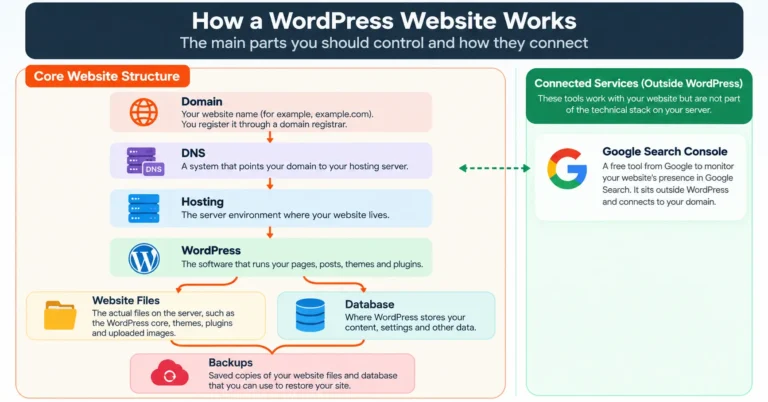
What is DNS? It stands for Domain Name System, and it helps a browser find the server behind a domain name. If you have seen terms like A record or nameservers in a hosting dashboard, this guide explains them in plain English.
What Is DNS?
DNS works like the contacts list on your phone. You remember a name, and the phone looks up the number. DNS does the same job for websites. It connects a domain name to an IP address, which is the numeric address of a server.
DNS does not host your website or store your pages, images or posts. Your hosting server does that, as explained in how web hosting works. DNS only tells browsers where to go.
How Does DNS Work?
- A visitor enters your domain name in a browser.
- DNS resolution finds the IP address linked to that domain.
- The browser connects to the server at that address and requests the website.
This lookup normally takes a fraction of a second, so visitors never notice it. For a wider view, MDN explains how the web works behind the scenes.
Simple DNS flow
- STEP 1Visitor enters domainIn the browser
- STEP 2DNS lookupFinds the record
- STEP 3IP address foundAddress of the server
- STEP 4Browser connectsTo the website server
A simplified view. Real lookups can involve caching and extra steps.
Which DNS Records Should You Know?
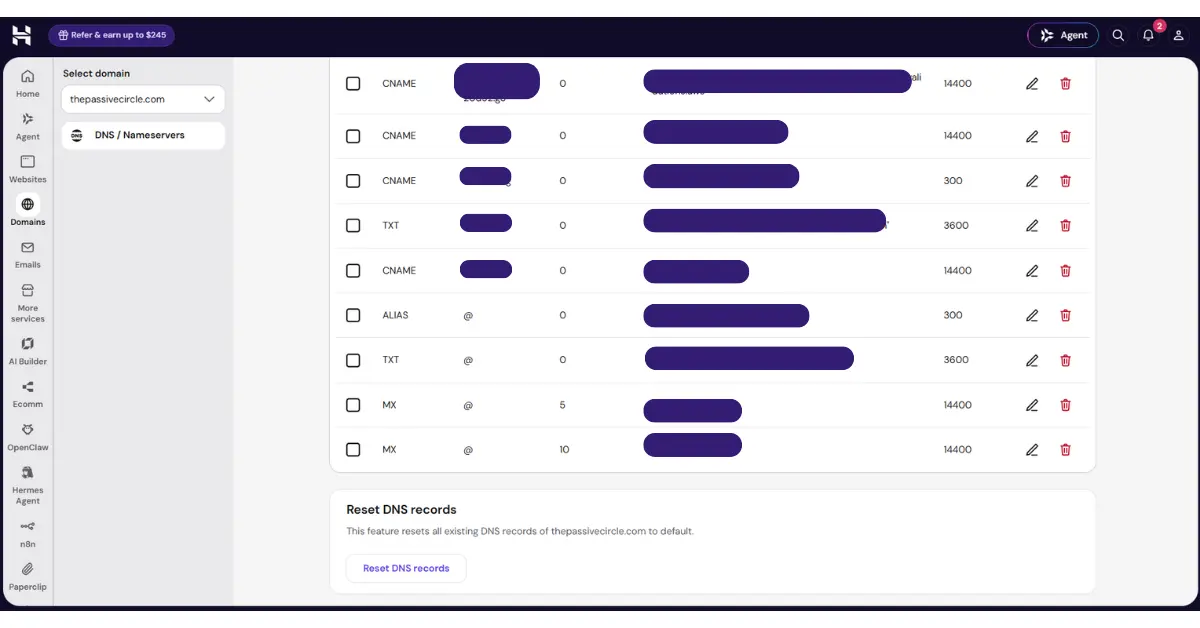
DNS records are instructions stored for your domain. Each one answers a question, such as where the website lives. Beginners mainly need to recognize three items. For a longer list of record types, see this DNS records reference.
A Record
An A record maps a hostname, such as example.com or www.example.com, to an IPv4 address. If your host gives you an IP address, it usually goes in an A record. A similar record called AAAA is used for IPv6 addresses.
CNAME Record
A CNAME record points one hostname to another hostname instead of an IP address. For example, a service may ask you to point shop.example.com to a name it provides. The service can then change its own IP address without you updating anything.
Nameservers
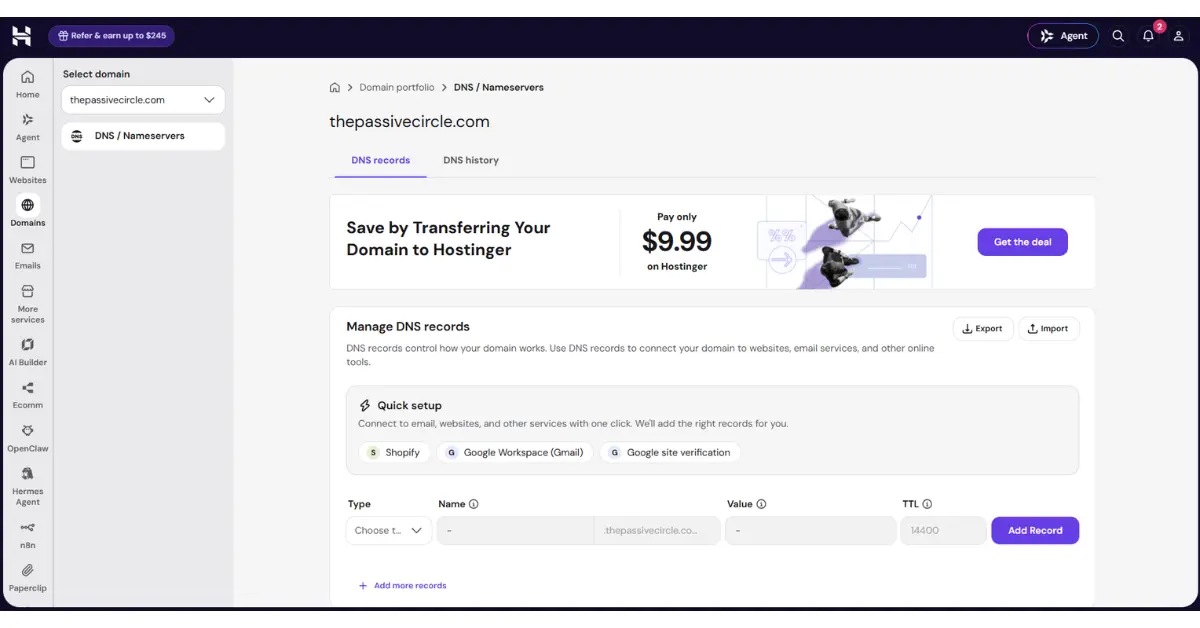
Nameservers identify the DNS service that is responsible for your domain’s DNS records. They are not the same as individual records. Changing nameservers changes where your records are managed, so existing records may need to be recreated at the new DNS service.
Domain registration and DNS management can be handled by different providers. Check which nameservers your domain uses before you edit anything.
When Should You Change DNS Settings?
Most owners only touch DNS for a few reasons:
- Connecting a domain to a hosting account.
- Moving a website to another hosting provider.
- Setting up a third-party service, such as email. Domain authentication in Systeme.io is one example.
Moving a site does not always require new nameservers. Some providers ask for a changed A record, and others ask for new nameservers. Follow the exact instructions from your hosting provider or service. For a real example, see this website setup guide covering migration, DNS and SSL problems.
Be careful here. Do not change a record unless you understand its purpose. A wrong change can take your website or email offline. To see where these settings may appear, read our guide to the hosting control panel.
What Is DNS Propagation?
DNS propagation is the time it takes for a DNS change to appear consistently across networks. Nothing is sent around the world. Instead, browsers, devices and DNS services keep saved copies of answers, called caches, until the record’s TTL (time to live) runs out.
That is why one visitor may see your new setup while another still sees the old one. There is no exact completion time. It depends on caching and TTL values.
What Should a WordPress Website Owner Remember?
- Know where your domain’s DNS is managed.
- Keep access to your registrar or DNS account.
- Save your existing settings before significant changes.
- Follow the destination provider’s instructions carefully.
- If the website works correctly, leave DNS alone unless you have a clear reason.