Your WordPress blog took weeks to build. You finally got the design right, the content is live, and traffic is starting to come in. Then someone mentions that a bad plugin can wipe everything out in seconds. Or your host has a server issue. Or you get hacked.
That fear is real. And it is why you are comparing WPvivid vs UpdraftPlus right now. Both are popular free backup plugins for WordPress. Both are highly rated. Both promise to protect your site. But they are not the same plugin. I went through both carefully so you can stop overthinking and make the right call today.
A WordPress backup plugin is a tool that automatically saves a complete copy of your website for files, database, themes, and plugins to a safe location like Google Drive or Dropbox. If anything goes wrong, you restore everything in minutes. According to WordPress.org, WPvivid holds a 4.9/5 rating from over 1,400 verified users, making it one of the best free WordPress backup plugins in the entire repository.
If you are still setting up your first blog, my step-by-step website setup guide walks you through everything before installing your first plugin.
WPvivid is the smarter choice for most beginners in 2026. It gives you more in the free version than UpdraftPlus does, including built-in migration and staging that UpdraftPlus locks behind a paid plan. The Pro upgrade costs $49 per year vs $70 for UpdraftPlus. And the 30-day money-back guarantee means zero risk. UpdraftPlus is a trusted plugin with 3 million installs, but for a beginner who wants maximum protection without spending a cent, WPvivid wins.
- Free migration included – no paid upgrade needed
- Free staging site support – test changes safely
- Full site backup including critical core files
- 4.9/5 rating from 1,400+ verified user reviews
- Pro plans start at just $49 per year for 2 sites
- 30-day money-back guarantee on all paid plans
WPvivid vs UpdraftPlus: What Are These Plugins and How Do They Compare?
Both WPvivid and UpdraftPlus are WordPress backup plugins. Before diving into this WordPress backup plugin comparison, the basics: both tools save an automatic copy of your entire website so you can restore everything in minutes if something goes wrong.
Think of a backup plugin like an undo button for your whole website. A bad update breaks your homepage. You get hacked. Your host crashes. A backup plugin lets you press undo and get everything back exactly as it was.
According to WordPress.org’s official backup documentation, every site owner should keep at least two backup copies stored in separate locations. A dedicated plugin is the easiest way to do this automatically, without any technical knowledge. That is exactly what both WPvivid and UpdraftPlus do.
UpdraftPlus has been around since 2011. It is the most-installed backup plugin in the WordPress directory with over 3 million active installs. Most beginners have heard of it. It is reliable, well-documented, and has an easy-to-use dashboard.
WPvivid is newer but growing fast. It now has 900,000+ active installs and a 4.9 out of 5 star rating from real users. Many bloggers searching for an UpdraftPlus alternative land on WPvivid because of how much it includes for free: not just backups and restores, but also full site migration and staging. Most plugins charge extra for those features. WPvivid includes them free.
Both tools backup your site to cloud storage like Google Drive or Dropbox. Both let you restore with a few clicks. The difference is everything that comes on top of that baseline. Let me walk through the details.
- Free migration with key-based transfer
- Free staging site support
- Full site backup including core files
- 4.9/5 star rating (1,400+ reviews)
- Pro starts at only $49/year
- Lifetime plans available
- 30-day money-back guarantee
- Incremental backups in Pro version
- Fewer installs than UpdraftPlus
- Dashboard can feel busy for beginners
- Security patch needed in Feb 2026 (now fixed)
- Free version limited to 1 backup schedule
- Incremental backups require paid plan
- Smaller community than UpdraftPlus
WPvivid vs UpdraftPlus: Free Backup Plugin Features Side by Side
This is the most important comparison for beginners. You want to know exactly what you get before spending any money. Most people searching for the best WordPress backup plugin are actually looking for the best free WordPress backup plugin first.
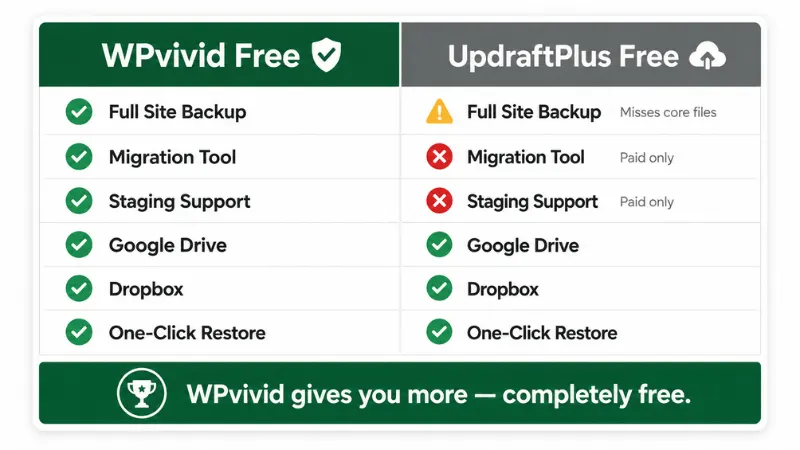
The honest answer: WPvivid gives you significantly more in its free version. That is not a marketing angle. It is the actual feature list. Here is what each plugin includes for free.
| Feature | WPvivid (Free) | UpdraftPlus (Free) |
|---|---|---|
| Full site backup | ✓ Complete backup | ⚠ Misses wp-config.php + .htaccess |
| Scheduled automatic backups | ✓ 1 schedule | ✓ Multiple schedules |
| One-click restore | ✓ | ✓ |
| Google Drive backup | ✓ | ✓ |
| Dropbox backup | ✓ | ✓ |
| Amazon S3 backup | ✓ | ✓ |
| Microsoft OneDrive (free) | ✓ Free | ✗ Premium only |
| DigitalOcean Space + SFTP (free) | ✓ Free | ✗ Not available |
| Built-in site migration | ✓ Key-based, fully automatic | ✗ Manual multi-file process only |
| Staging site support | ✓ Free | ✗ Paid plan only (UpdraftClone) |
| Incremental backups | ✗ Pro only | ✗ Premium only |
| Database encryption | ✗ Pro only | ✗ Premium only |
| Backup before updates | ✗ Pro only | ✗ Premium only |
| WordPress.org rating | 4.9/5 (1,400+ reviews) | 4.8/5 (7,000+ reviews) |
| Active installs | 900,000+ | 3 million+ |
The Hidden Gap in UpdraftPlus Free
Here is something most comparison posts skip. The free version of UpdraftPlus does not back up your complete WordPress site. It backs up your database, plugins, themes, and uploads folder. But it misses two critical files: wp-config.php and .htaccess.
Those files hold your database connection details and server configuration. If your site crashes badly and those files are missing from the backup, restoring your site becomes a technical challenge. For a beginner, that can mean hours of confusion or needing to hire someone.
WPvivid’s free version backs up your complete site, including those critical files. For someone just starting out, that difference matters a lot more than it sounds.
WPvivid vs UpdraftPlus: Pricing Compared
Both plugins have free versions that work well for basic protection. When you need more features like incremental backups or database encryption, you upgrade. WPvivid is meaningfully cheaper at every tier.
WPvivid Pricing (2026)
| Plan | Yearly | Lifetime (1-Time) | Sites | Key Pro Features Added |
|---|---|---|---|---|
| Free | $0 | $0 | Unlimited | Backups, restore, migration, staging, 7 cloud storage options |
| Blogger Best for beginners | $49/year | $99 one-time | 2 sites | Incremental backups, database encryption, push staging to live, auto-backup before updates |
| Freelancer | $69/year | $139 one-time | Up to 10 sites | + White label, role and capabilities management, unlimited license transfers |
| Small Business | $99/year | $199 one-time | Up to 50 sites | + Advanced scheduling, Wasabi, Backblaze, pCloud, WebDAV, multisite support |
| Ultimate | $149/year | $299 one-time | Unlimited sites | Everything + 24/7 ticket support, all future features |
Every paid plan bundles the Backup and Migration Pro addon, Staging Pro, role management, and white label access. The Blogger plan at $49/year is ideal for a single blog. If you want to stop paying annually, the Blogger lifetime plan at $99 one-time covers 2 sites forever. All paid plans come with a 30-day money-back guarantee.
UpdraftPlus Pricing (2026)
| Plan | Price / Year | Sites | Key Features |
|---|---|---|---|
| Free | $0 | Unlimited | Backups, restore, cloud storage, basic scheduling |
| Personal Entry paid | $70/year | 2 sites | Incremental backups, one-click migration, OneDrive, basic staging, 1GB storage |
| Business | $95/year | 10 sites | + Standard staging |
| Agency | $145/year | 35 sites | + Advanced staging |
| Enterprise | $195/year | Unlimited | + Ultimate staging |
| Gold | $399/year | Unlimited | + 50GB storage, UpdraftCentral management |
UpdraftPlus only offers a 10-day money-back guarantee. That is one-third of what WPvivid gives you. There are no lifetime plans available for UpdraftPlus.
WPvivid Review: Key Features That Make It Stand Out
For this WPvivid review, I went through the documentation, real user feedback, and independent tests to understand how each feature actually works in practice. This is what stood out most and why WPvivid is consistently recommended as one of the best WordPress backup plugins for beginners.
☁️ Automatic Cloud Backup
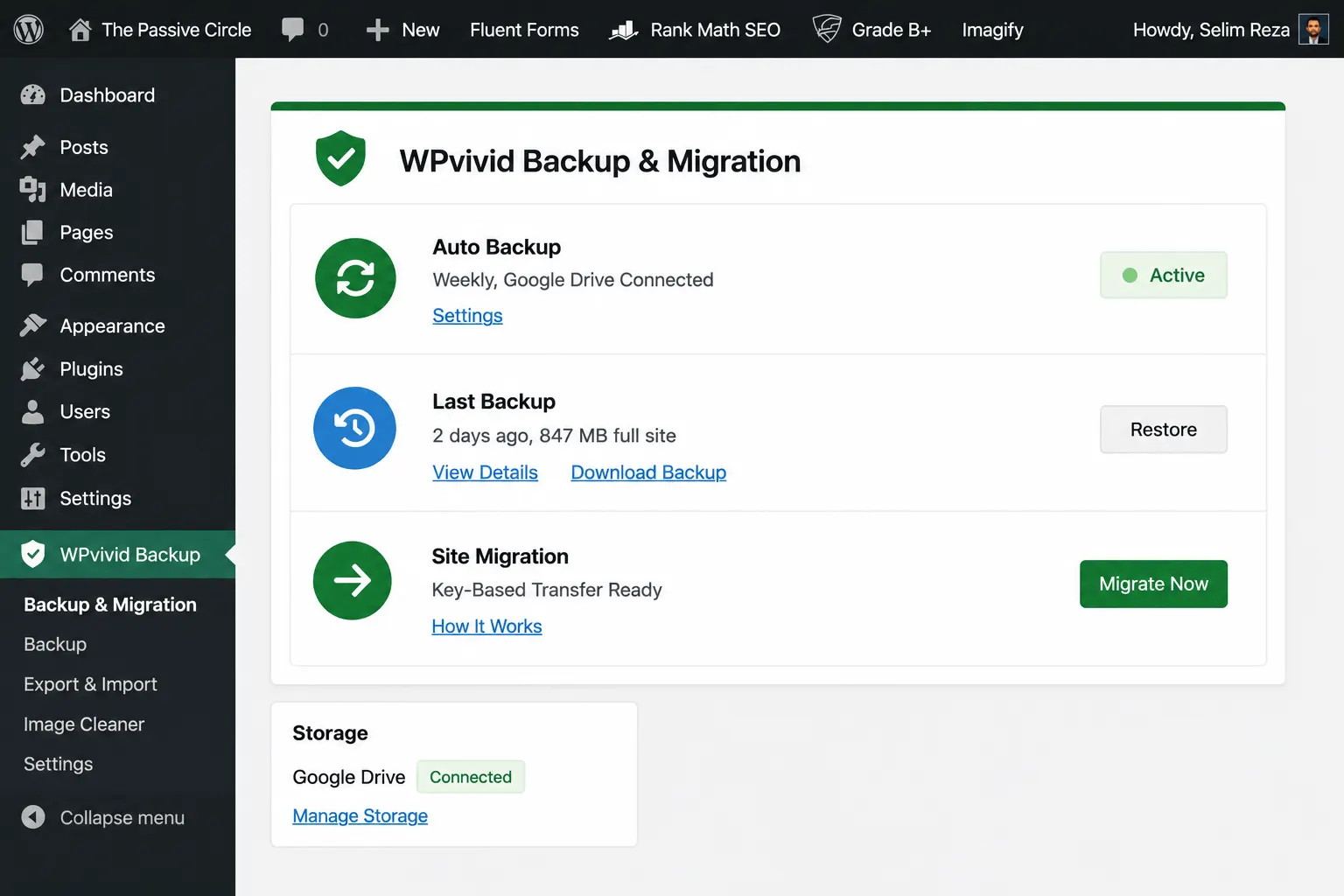
WPvivid’s free version connects to Google Drive, Dropbox, Amazon S3, Microsoft OneDrive, DigitalOcean Space, FTP, and SFTP. Set a schedule once and your backups run automatically every week without you doing anything.
🔁 One-Click Restore
Select any backup from your list and click Restore. WPvivid handles everything automatically. You can restore your full site, just the database, or just the files. No technical knowledge needed.
🚀 Key-Based Migration (Free)
This is WPvivid’s most beginner-friendly feature. Install WPvivid on your old and new site, generate a migration key, enter it on the new site, and WPvivid transfers everything automatically. No downloading and uploading huge zip files.
🧪 Staging Site (Free)
Create a private test copy of your live site. Try new plugins, update your theme, or make design changes. If anything breaks, your live site is untouched. Push to live only when you are confident. UpdraftPlus charges extra for this.
⚡ Incremental Backups (Pro)
Instead of backing up your entire site every time, incremental backups only save what changed since the last backup. Faster backups, less server load, less storage used. Available in the Blogger plan and above.
🔒 Database Encryption (Pro)
Your backup files contain sensitive data. Database encryption scrambles that data so that if someone accesses your backup files, they cannot read your user information or settings. An important feature for any serious site.
How WPvivid Migration Actually Works for Beginners
Let me be specific here because this is the feature most beginners get confused about. Moving your WordPress site to a new host normally involves downloading multiple backup files, uploading them to the new server, configuring database connections, and hoping nothing breaks.
With WPvivid’s free migration, the process is much simpler. You install WPvivid on both your old site and your new site. On the old site, you create a backup. WPvivid gives you a unique migration key. You paste that key into the new site’s WPvivid dashboard. WPvivid then transfers your files and database directly from one server to the other.
No manual downloads. No FTP uploads. No database configuration errors. For a beginner moving to a better host like Hostinger, this feature alone is worth choosing WPvivid over UpdraftPlus.
Is WPvivid Safe After the February 2026 Security Issue?
Yes. A security vulnerability was disclosed in February 2026 affecting older WPvivid installations. It was patched quickly in version 0.9.124. As long as you keep WPvivid updated (which WordPress does automatically by default), you are protected. This is not a reason to avoid WPvivid. It is a reminder to always keep all your plugins updated, regardless of which backup tool you use.
The Patchstack security database confirms the vulnerability was responsibly disclosed and patched. Keeping plugins updated is standard practice for any WordPress site, and WPvivid’s team responded promptly. That is a good sign for a plugin you are trusting with your site’s safety.
WPvivid vs UpdraftPlus: Full WordPress Backup Plugin Comparison
You have seen the individual details. Now let me put them side by side so the decision is clear. If you have read my WordPress setup guide for beginners, you already know how important it is to pick the right tools from day one. Backup plugins are no different.
| Feature | WPvivid | UpdraftPlus |
|---|---|---|
| Free version full site backup | ✓ Complete (all files) | ⚠ Misses critical core files |
| Free migration tool | ✓ Key-based, fully automatic | ✗ Manual process only |
| Free staging support | ✓ Included free | ✗ Paid add-on (UpdraftClone) |
| Pro entry price (1 site) | $49/year | $70/year |
| Money-back guarantee | 30 days | 10 days only |
| Lifetime plan available | ✓ Yes | ✗ No |
| Incremental backups (free) | ✗ Pro only | ✗ Premium only |
| Cloud storage (free) | ✓ Google Drive, Dropbox, S3, OneDrive, DigitalOcean, FTP, SFTP | ✓ Google Drive, Dropbox, S3, FTP |
| Microsoft OneDrive (free) | ✓ Free | ✗ Premium only |
| One-click restore | ✓ | ✓ |
| WordPress.org rating | 4.9 / 5 (1,400+ reviews) | 4.8 / 5 (7,000+ reviews) |
| Active installs | 900,000+ | 3 million+ |
| Best for | Beginners, bloggers, budget-conscious | Established WordPress users, developers |
The pattern is clear. WPvivid wins on free-version value, pricing, money-back guarantee, and migration features. UpdraftPlus wins on install count and community size, which matters more for developers who need support documentation and forum help.
For a beginner building their first blog, WPvivid is the better starting point and the strongest UpdraftPlus alternative at the free tier. The tools you need most – backup, restore, migration, and staging – are all included at zero cost. And if you want to grow your blog’s traffic once it is protected, my guide on how to get traffic to your new blog is the next step.
Who Should Use WPvivid and Who Should Stick With UpdraftPlus?
Neither plugin is perfect for everyone. Here is a clear breakdown based on the type of site you run and what you actually need.
| Choose WPvivid if you… | Choose UpdraftPlus if you… |
|---|---|
| Are starting your first WordPress blog | Want the most popular plugin for peace of mind |
| Need to migrate your site to a new host | Only need simple cloud backups and restores |
| Want to test plugin changes safely (staging) | Prefer a cleaner, simpler dashboard interface |
| Want maximum free features, zero cost | Are already using UpdraftPlus and it works fine |
| Want a cheaper Pro upgrade ($49 vs $70) | Need WP-CLI support for server-level management |
| Hate annual fees and want a lifetime deal | Build client sites and want granular restore control |
If you are an established WordPress developer who already has UpdraftPlus configured and running perfectly, there is no urgent reason to switch. Both tools do the core job well.
But if you are starting fresh and want the best free backup plugin for WordPress that also handles migration and staging without paying a cent, WPvivid is the clear, practical choice at every price point.
Yes. For most beginner bloggers and affiliate marketers, this WPvivid review leads to a clear conclusion: it is absolutely worth installing, even if you never upgrade to the Pro version.
The free version gives you complete backups, automatic scheduling to Google Drive or Dropbox, one-click restore, free site migration, and free staging. That is more than most backup plugins give you in their paid tiers. As a real UpdraftPlus alternative, WPvivid does not just match the free plan. It goes further.
- You get free migration when you switch to a better host
- You get free staging to test updates without breaking your live site
- You get a complete full-site backup including critical core files
- You get 7 free cloud storage destinations including OneDrive and DigitalOcean Space
- If you upgrade, the Blogger plan costs $49/year or $99 one-time vs $70/year for UpdraftPlus
- You get a 30-day money-back window, not 10 days
The only reason to choose UpdraftPlus over WPvivid is if install count and community size matter more to you than free features and lower price. For most beginners, WPvivid is the better deal at every level.
Protect Your WordPress Site Today – It Takes 5 Minutes
WPvivid is completely free to install. Connect it to Google Drive, set a weekly backup schedule, and your first backup will run automatically. When you are ready to switch hosts or test a risky plugin, the tools are already there.
Install WPvivid Free. Start Protecting Your Site →Frequently Asked Questions About WPvivid vs UpdraftPlus
If you have been putting off setting up a backup plugin, today is the right day to do it. Website disasters do not send a warning ahead of time. WPvivid takes about five minutes to install and connect to Google Drive. Your first automatic backup will run before the end of the day.
Start with the free version. Connect it to cloud storage. Set a weekly schedule. If you ever switch hosts or need to test a risky plugin update, everything is already in place. That is why so many beginners call it the best WordPress backup plugin they wish they had installed sooner.
Once your site is protected, the next step is building traffic. I use a simple 2-hour daily routine for affiliate marketing that fits around a full-time job. And if you want to understand how SEO works for beginner blogs, my guide on affiliate marketing for beginners covers the full picture from day one.